 TUTORIALS
You spent weeks building a six-lesson course. A student signs up, pays, and reads every single lesson in one sitting. By week two they’re gone — overwhelmed, under-prepared, and probably asking for a refund.
That’s not a content problem. It’s a pacing problem. And the fix isn’t a $200/year membership plugin.
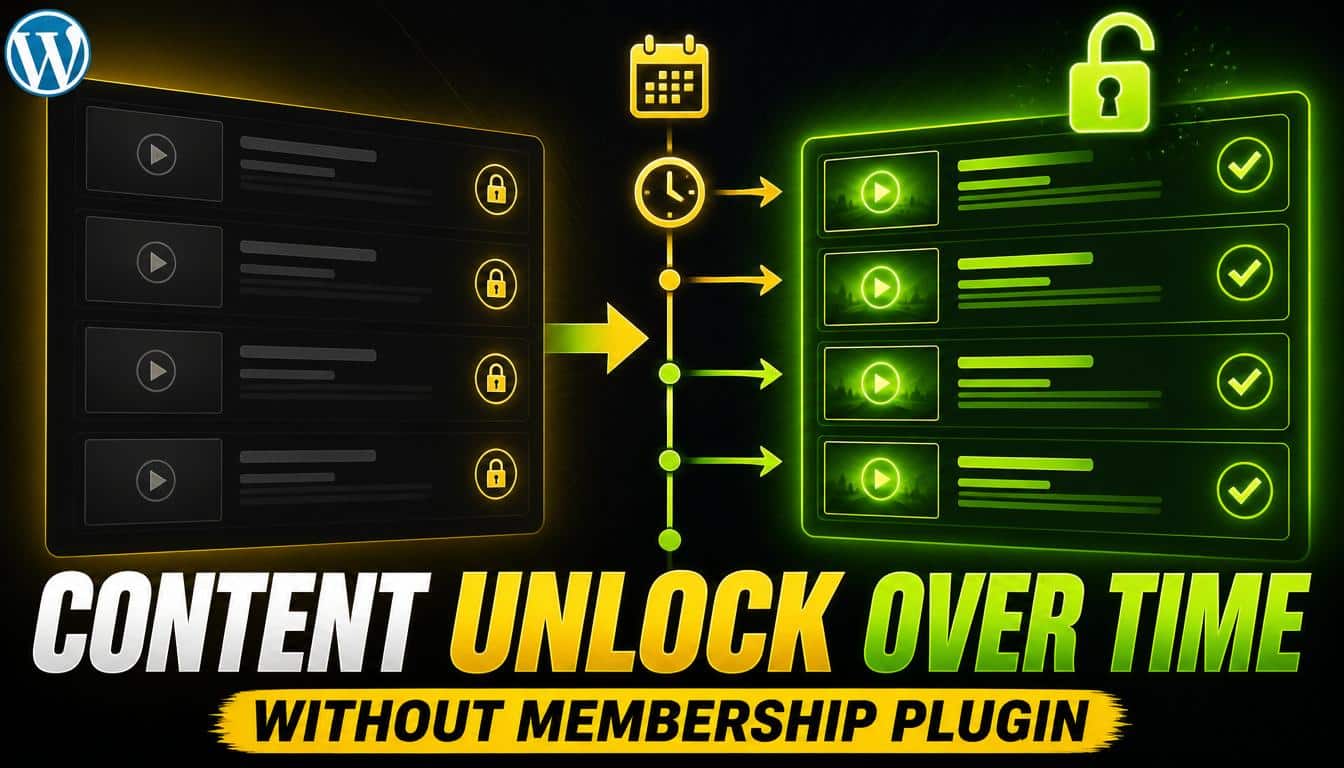
Drip content is simple: lessons unlock on a schedule instead of all at once. Lesson 1 is available immediately. Lesson 2 unlocks three days later. Lesson 3 a week after that. Students move at the pace you designed — not the pace anxiety or boredom dictates.
Most WordPress site owners hear “drip content” and assume they need MemberPress, LearnDash, or some LMS platform to pull it off. Those tools are powerful, but they’re also expensive, complex to configure, and overkill if you’re running a standalone course without a full membership infrastructure behind it.
There’s a lighter way.
The obvious workaround is to keep future lessons as drafts and manually publish them on the right date. A lot of course creators try this. It fails for two reasons.
First, you have to remember to do it. Miss a Monday and your students hit a broken link or a 404. Second, WordPress scheduled posts don’t restrict access based on who is viewing — they just flip from private to public at a set time. If a student bookmarks a lesson URL before it publishes, they may see a blank page, an error, or a cached version depending on your cache setup. It’s brittle.
What you actually want is a per-page time lock — a rule that says “don’t show this content until this exact date and time, regardless of who asks for it.” That’s a fundamentally different mechanism from WordPress’s native scheduling.
Timed Content Locker is a lightweight WordPress plugin that adds a time-based lock to any post or page. You set an unlock date and time per piece of content, choose who gets restricted, and the plugin handles the rest. No LMS required. No monthly subscription. No user account system unless you already have one.
Here’s how to drip a six-lesson course in under 15 minutes:
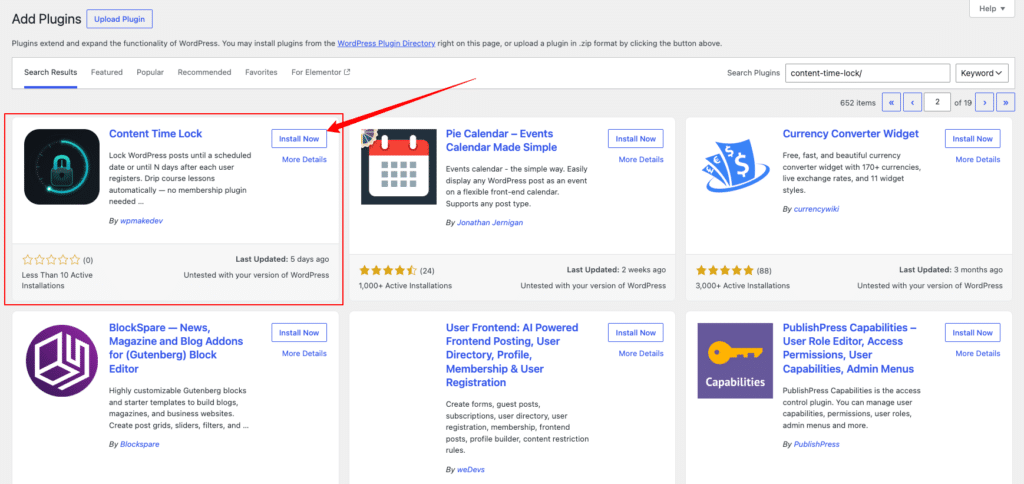
Step 1 — Install and activate. Go to Plugins → Add New, search “Content Time Lock,” install and activate. Two minutes, done.
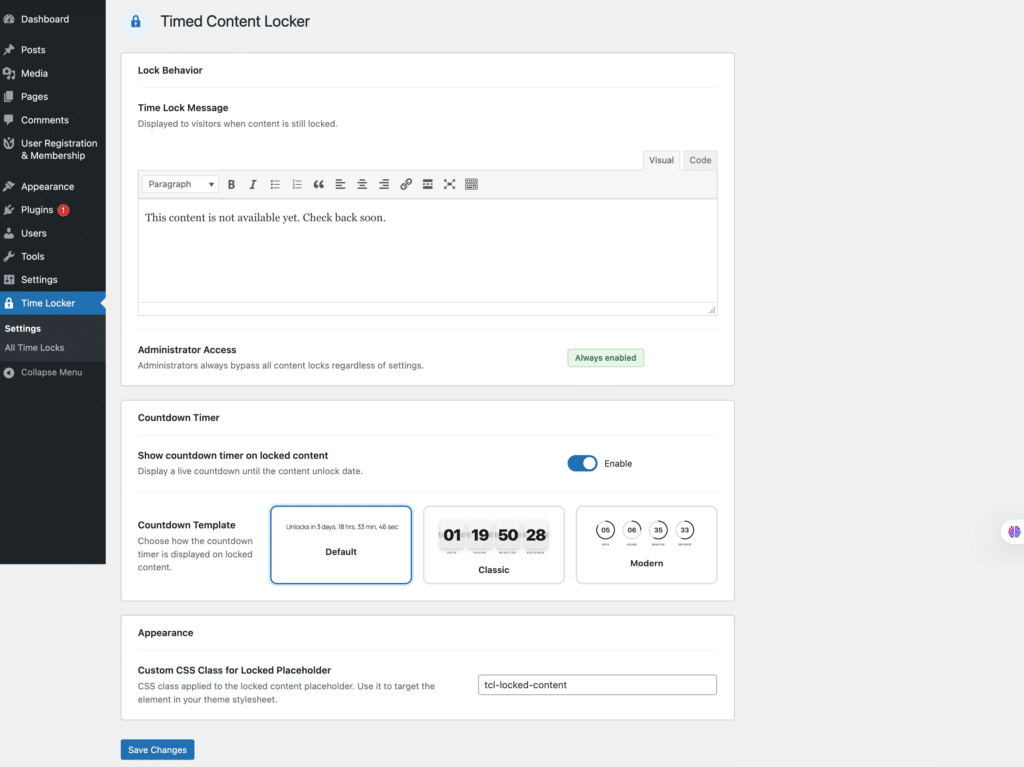
Step 2 — Set your global defaults. Go to Tools → Timed Content Locker → Global Settings. Write a default locked message — something like “This lesson isn’t available yet. Check back on [date].” Toggle the countdown timer on if you want students to see exactly how long they’re waiting.
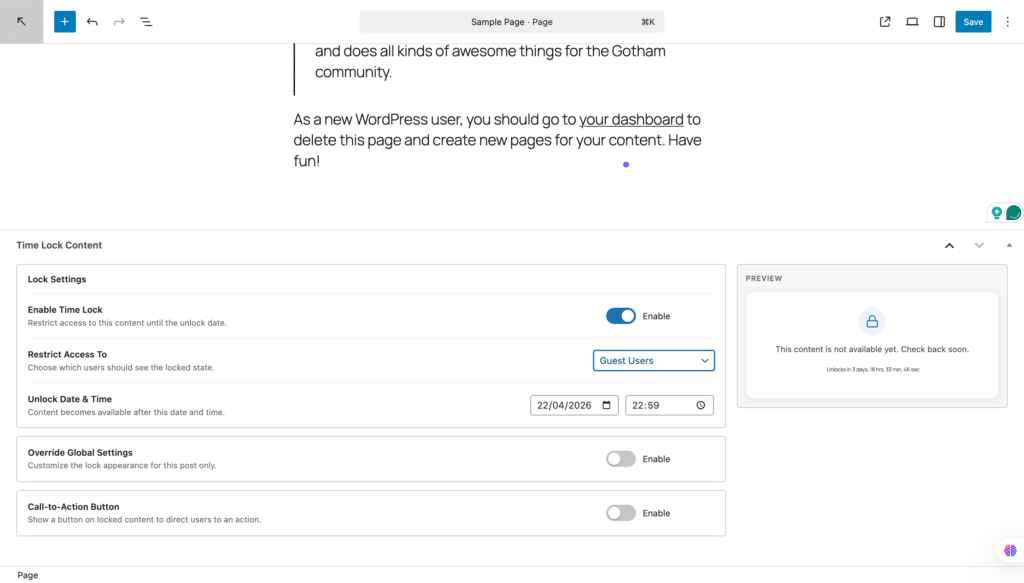
Step 3 — Open each lesson and set its unlock date. In the block editor sidebar, find the “Time Lock Content” panel. Enable the lock, pick your unlock date and time, and choose who is restricted. For most course setups, “Guest Users” locks out visitors who aren’t logged in, while logged-in students see a countdown instead of a blank wall.
Step 4 — Set the sequence. Lesson 1 unlocks on launch day. Lesson 2 unlocks three days later. Lesson 3 six days out. Space them however your curriculum demands — daily, weekly, whatever fits the transformation you’re guiding students through.
Step 5 — Preview as a logged-out user. Open an incognito window, visit each lesson URL, and confirm the lock message appears where it should. Takes two minutes and catches most mistakes before students do.
That’s the full setup. No shortcodes, no custom fields, no developer needed.
The latest version of Timed Content Locker adds something course creators have been asking for: the ability to unlock content a set number of days after a student registers, rather than on a fixed calendar date.
This is the key difference between cohort-based dripping and evergreen dripping. With registration-relative unlocking, Student A who signs up in January and Student B who signs up in March both experience the same sequence — Lesson 2 unlocks 3 days after their registration, not on a single shared date. Every student gets the full intended pacing regardless of when they enrolled.
To use it, enable the time lock on a lesson as usual, then switch the unlock mode from “fixed date” to “days after registration.” Enter the number of days — say, 3 — and the plugin calculates the unlock time individually for each user based on their WordPress registration date.
This makes Timed Content Locker suitable for self-paced evergreen courses, not just cohort launches. If you’re running a course that accepts new students year-round, the registration-relative mode is the one to use.
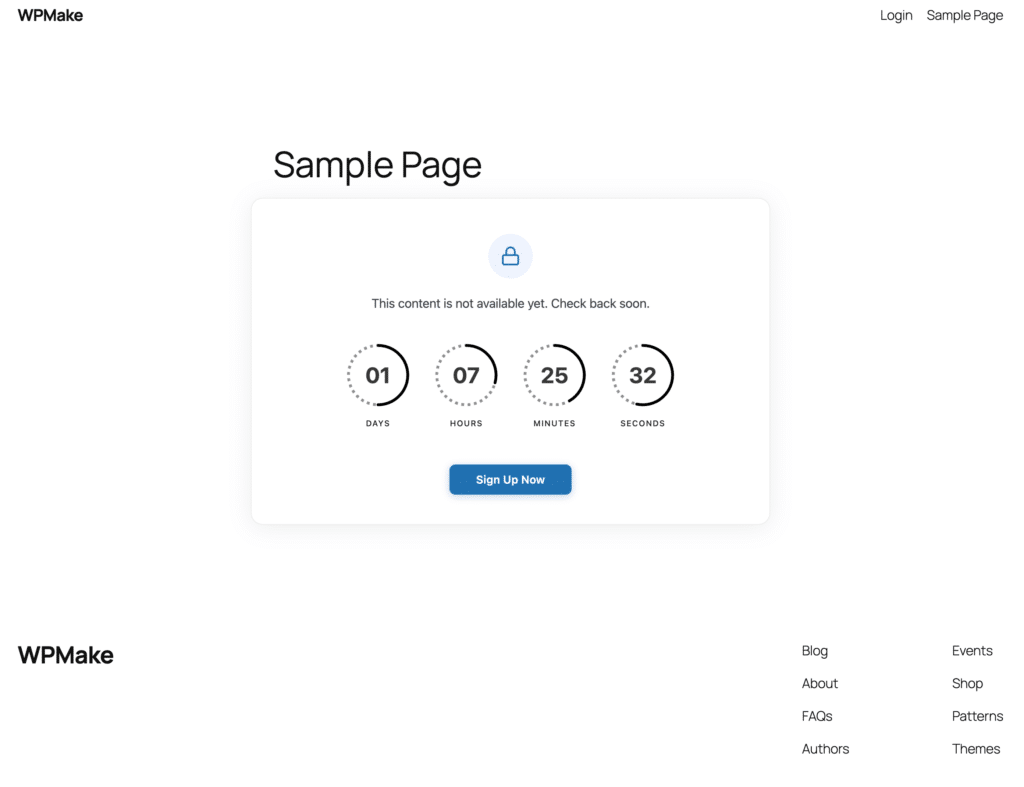
When a locked lesson loads, students see the message you wrote plus an optional countdown timer. They know exactly when to come back. There’s no dead 404, no confusing empty page — just a clear signal that content is coming.
That clarity matters more than it sounds. A student who sees “Lesson 3 unlocks in 4 days, 6 hours” will come back. A student who hits a 404 assumes something is broken and emails you.

You can also add a call-to-action button on the locked screen — link it to a community, a worksheet, or a review of the previous lesson. Dead wait time becomes productive engagement time.
Ready to set up your drip sequence? Install Timed Content Locker from the WordPress plugin directory and have your first lesson locked in under 15 minutes.