
 PLUGIN COMPARISON
Version 2.0.0 is the largest release this plugin has had. Some of it is new features; a lot of it is settings that existed but did not work, which is the less glamorous half of a major version and often the half you feel most.
Here is what changed and what you may want to do about it.
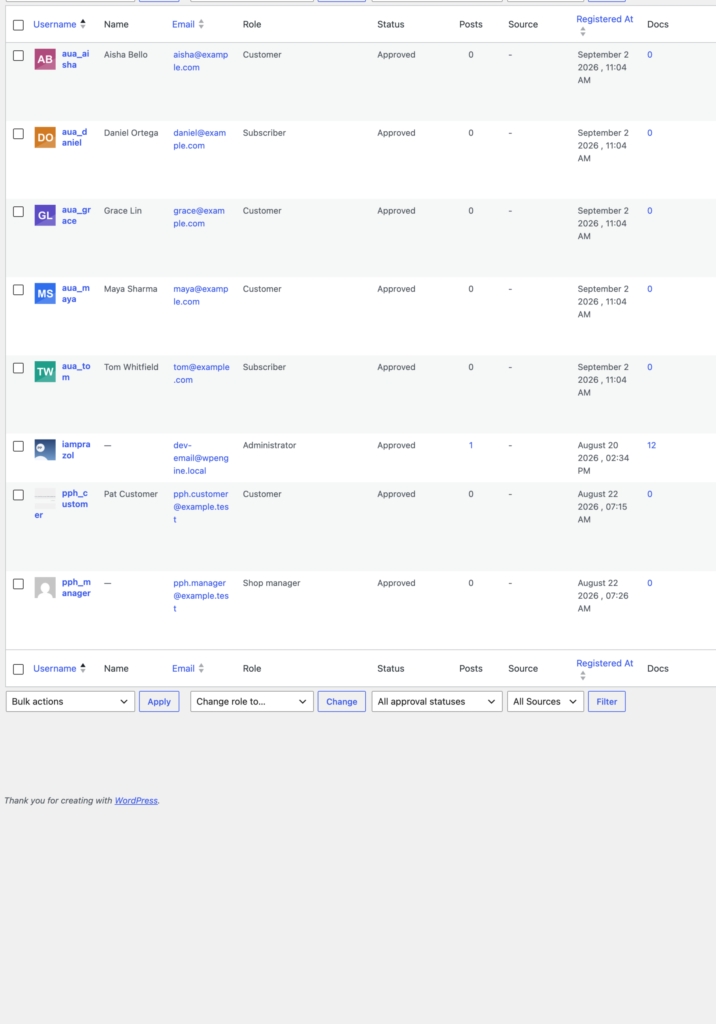
The largest behavioural change. Uploaded photos now appear in comments, the admin bar, the Users list, the block editor and the REST API — several of which still showed a Gravatar before.
The reason is architectural: avatars are supplied through the pre_get_avatar_data filter now, at priority 99, rather than through get_avatar. That is the filter WordPress uses internally, so anything asking WordPress for an avatar gets the photo — including plugins that have not been written yet.
A related consequence worth stating plainly: nothing at all is sent to Gravatar for a user who has uploaded their own picture. Not even a scrambled version of their email address.
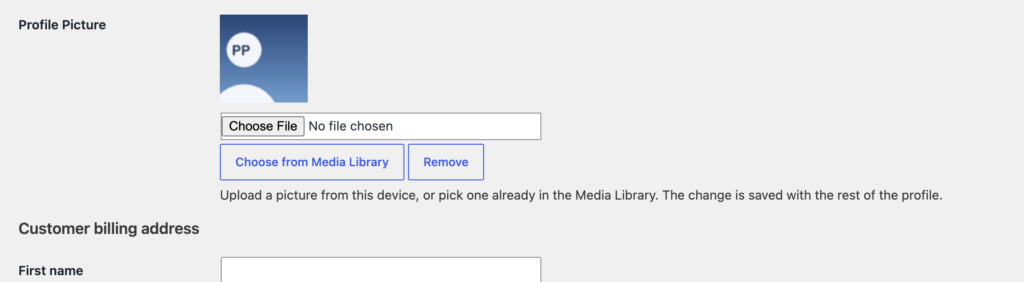
The place most people look first finally has one. Users → Profile now carries a Profile Picture field with upload, media library and remove buttons — and the misleading “you can change your profile picture on Gravatar” text is gone, since changing a Gravatar has no effect once this plugin is active.
Previously everybody could manage only their own picture. Administrators can now change or remove anybody’s, and there is a Manage Avatars tab that lists every user with their current photo — searchable, sortable, and editable without leaving the page.
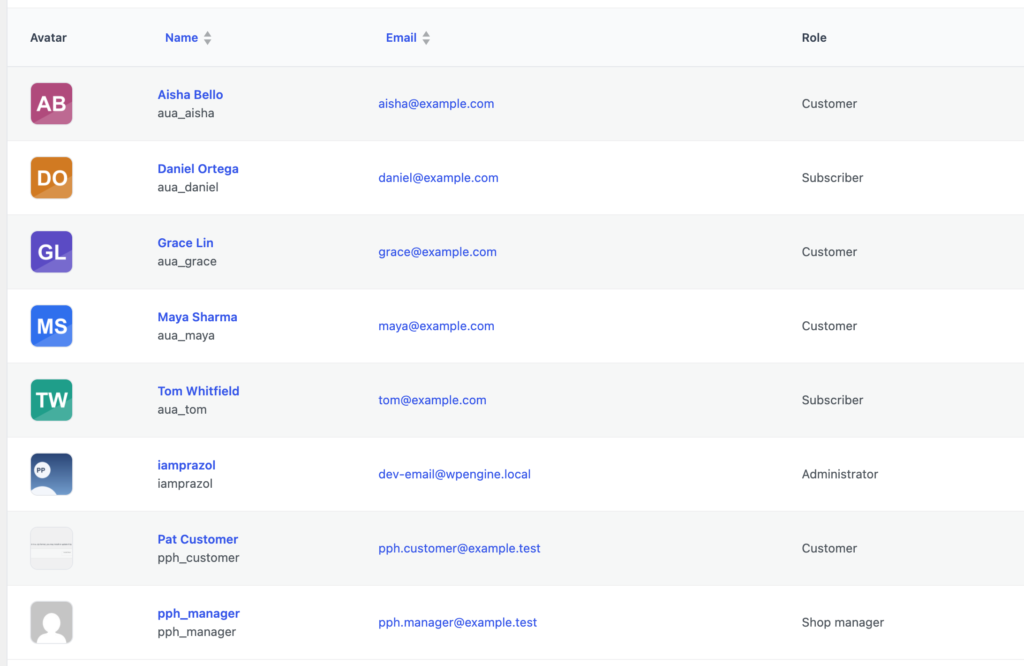
On multisite the tab is limited to super administrators, because an avatar is shared across the whole network and changing one affects sites a single-site administrator may have no rights over.
The old single WooCommerce switch has become six independent display locations plus a separate uploader toggle: My Account dashboard, Account details, Order history, Product reviews, Checkout and Wishlist.
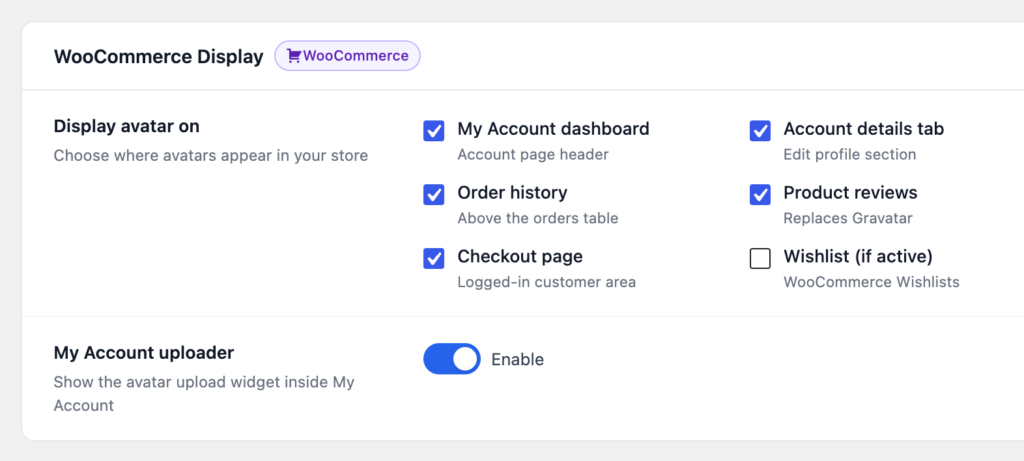
If you are upgrading, nothing changes visually. The old setting is migrated: stores that had it on come out with the dashboard and account details locations ticked and the uploader on, which is what that toggle used to do.
One of these is a fix rather than a feature. “Product reviews” existed before and did nothing; unticking it now genuinely hides review avatars.
The least exciting and most useful section of the changelog:
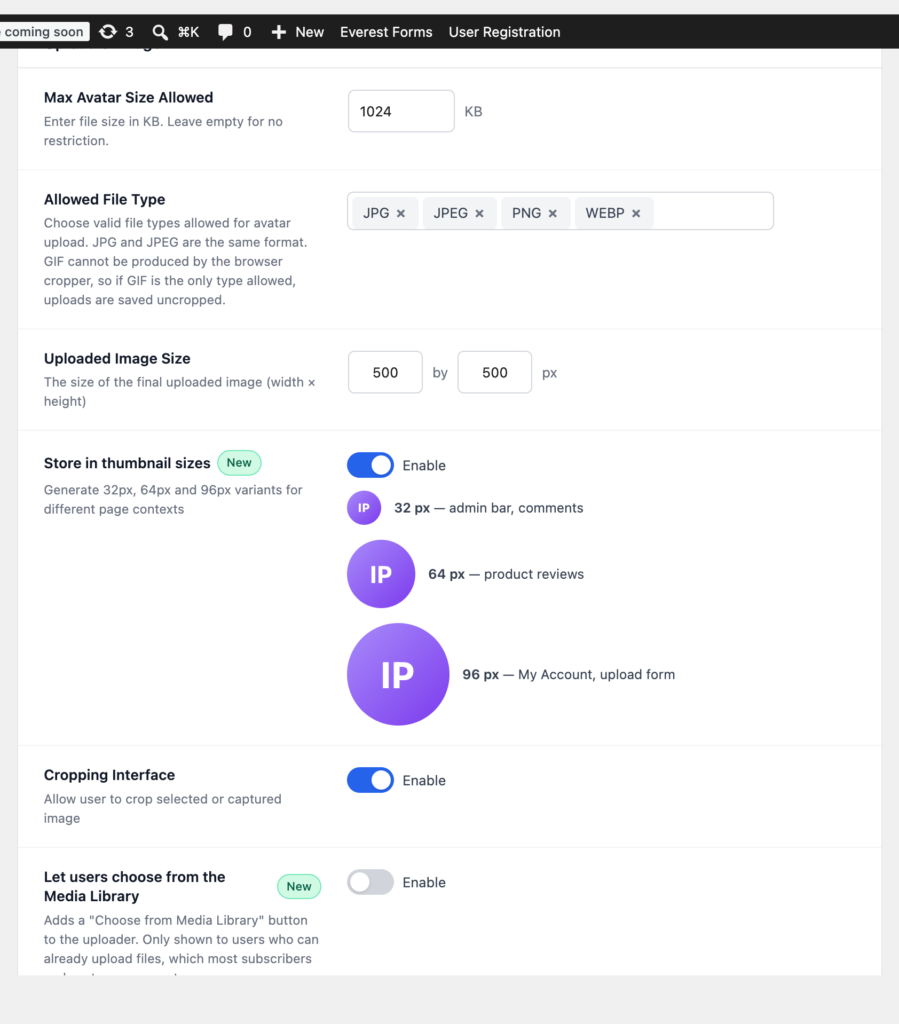
Someone without permission to use the media library can no longer take an image from it as their own picture — the button was hidden from them, but the endpoint did not check.
On multisite, a user’s picture could show a completely different image on other sites in the network. That is fixed, along with the upload folder not being created for sites added later, and deleting an image on one site clearing people’s pictures on another.
Let users choose from the Media Library — off by default, and only ever shown to people who can already upload files.
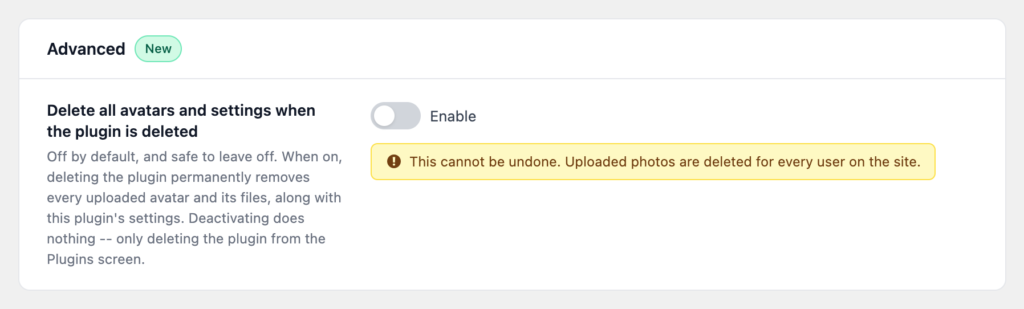
Delete all avatars and settings when the plugin is deleted — also off by default. Deactivating never deletes anything, whatever this is set to.
New public functions for setting avatars from your own code — wpmake_aua_set_user_avatar(), wpmake_aua_remove_user_avatar() and wpmake_aua_current_user_can_edit_avatar() — plus wpmake_aua_avatar_set and wpmake_aua_avatar_removed actions, and a wpmake_aua_avatar_subsizes filter for the generated sizes.
Why this is a major version: two public functions have been removed. wpmake_advance_user_avatar_replace_gravatar_image() and wpmake_advance_user_avatar_build_avatar_html() are gone, because WordPress now builds the avatar markup itself, including class merging and srcset. If you replaced either one, that override no longer runs — filter pre_get_avatar_data at priority 100 or later instead.
Both shipped templates also changed and are marked @version 2.0.0. If you copied either into your theme, diff your copy against the new one — the uploader template gained the optional Media Library button.
For most sites it is an ordinary update: WooCommerce settings migrate themselves, existing avatars are untouched, and nothing needs reconfiguring. Check afterwards if you had customised anything — a template copied into your theme, or code calling one of the two removed functions.
Everyone else will mostly notice that avatars have appeared in several places they had not before, and that the settings which never seemed to do anything now do.