
 TUTORIAL
WordPress has no front-end way for a user to set a profile picture. There is no upload field on the profile screen out of the box, and nothing at all on the front end — so on most sites the question “how do I change my photo?” has no good answer.
Here is how to give your users one, without writing any code or editing a template.
A widget on a normal page of your site. A logged-in user opens it, picks a photo, positions it in a square crop, and saves. From that moment the photo is used everywhere their name appears.
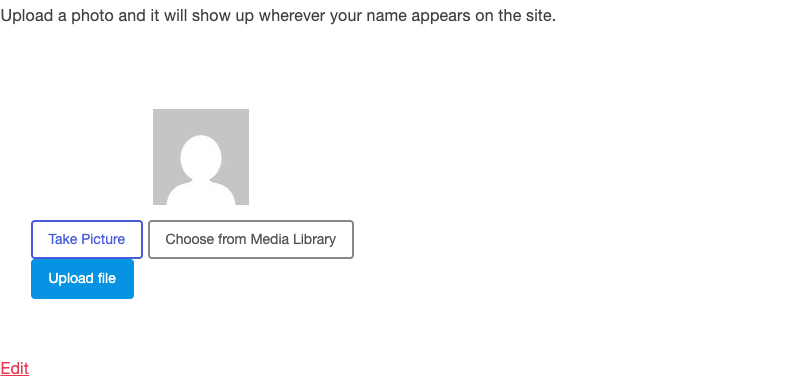
Install and activate Advanced User Avatar from Plugins → Add New. Its settings appear at Users → Users Avatar. You do not have to configure anything yet — the defaults are already sensible.
Make a page called something obvious — Your profile picture, My account, Edit profile — and add the block. Click the inserter, search for Advanced User Avatar, and insert it.
The block’s sidebar panel offers two modes: the full uploader, or a display-only avatar for places where you just want to show the photo. If you use a page builder or a classic theme, the same two things are available as shortcodes:
   the full upload form
display onlyA page nobody can find gets no uploads. Add it to whatever navigation your logged-in users actually see — an account menu, a members’ dashboard, the welcome email you send on registration.
If you run WooCommerce you can skip this step entirely: switch on the My Account uploader and the widget is added to the Account details page for you, alongside the fields customers already edit.
They press Upload file, choose a photo, and get a square crop window with a zoom slider and live previews at the sizes the site actually uses. They drag, they save, and it is done.
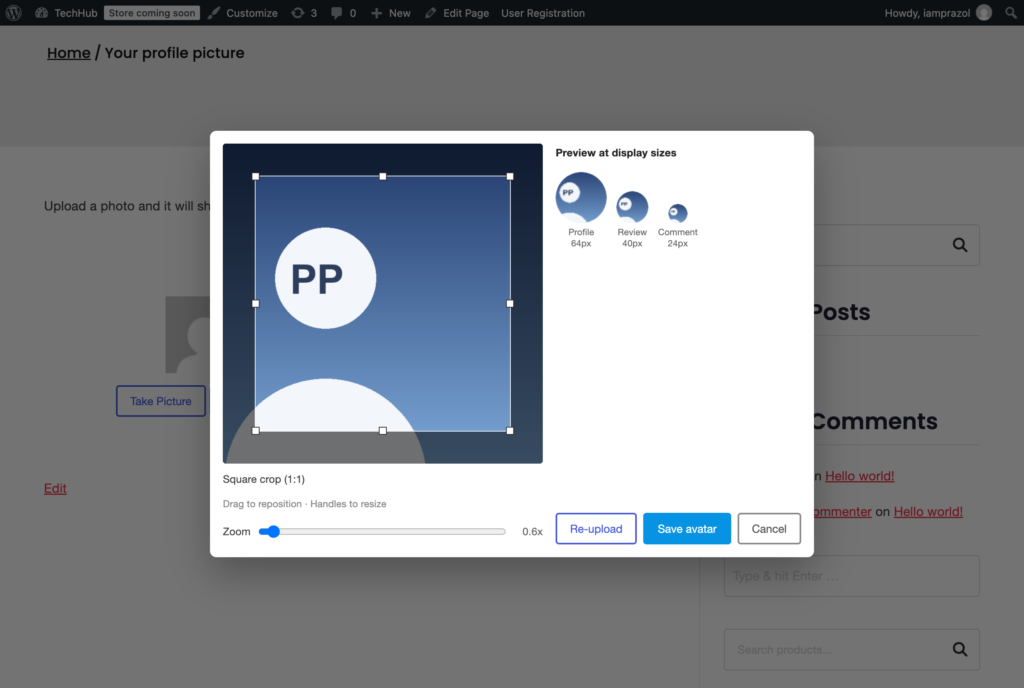
Because the crop runs in the browser, a 4 MB phone photo becomes a small square before it is uploaded, rather than being sent in full and resized on your server. It is faster for the user and cheaper for you.
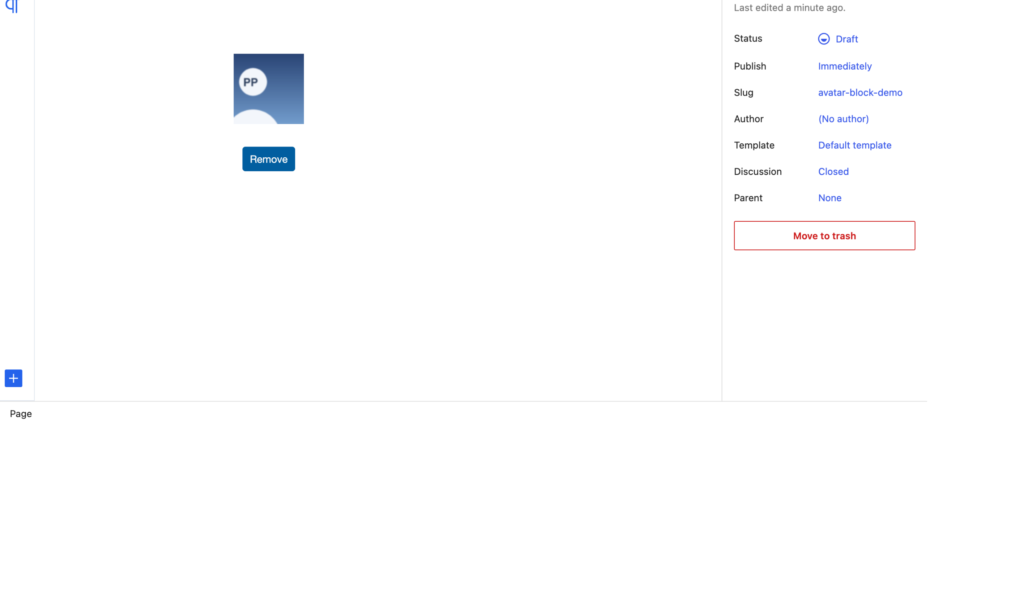
Once a photo is set, the widget shows it with a Remove button underneath, so changing or clearing it is equally self-service.
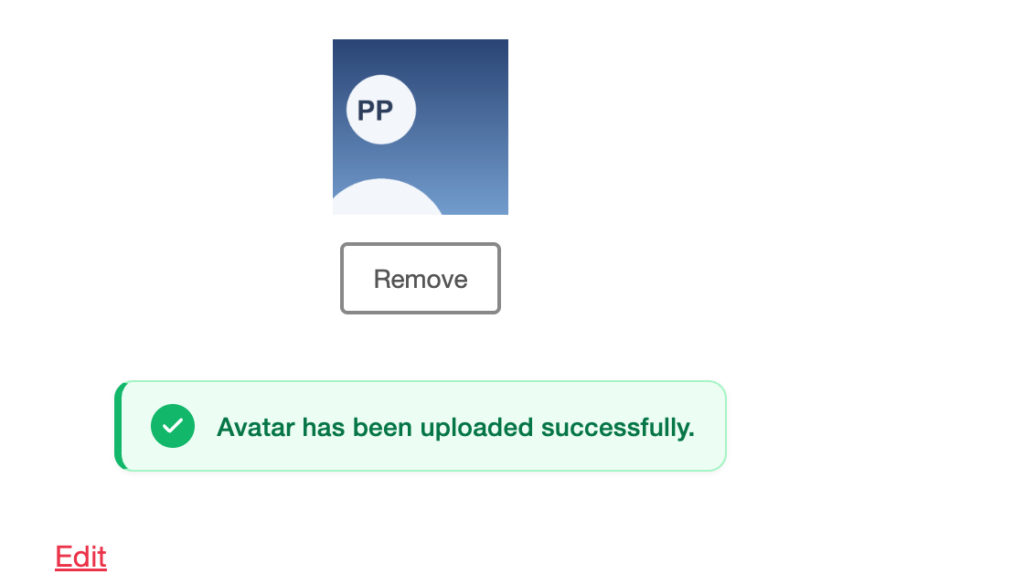
The widget renders only for logged-in users, and only ever changes that person’s own picture — a subscriber cannot touch anybody else’s. A logged-out visitor gets nothing at all: no empty widget, and none of the plugin’s scripts or styles on the page.
That last part matters for performance. The front-end assets load only on requests that actually render the widget, so putting it on one account page does not add JavaScript to your home page.
That is the whole job. One page, one block, and your users have an answer to a question your site could not previously answer at all.