
 TUTORIAL
A user uploads a portrait photo of themselves. It looks correct on their phone. It looks correct when they open it on their laptop. On your site, it is lying on its side.
Nobody involved has done anything wrong. This is a decades-old compromise in how cameras store images, and it is worth understanding because it explains a whole family of image bugs, not just this one.
Phone camera sensors are fixed in the body. Whichever way you hold the phone, the sensor reads out in the same orientation, and rotating the pixels afterwards costs time and battery on a device trying to be ready for the next shot.
So the phone does not rotate them. It writes the pixels as the sensor produced them and adds a note in the file’s EXIF metadata — the Orientation tag — saying “this should be displayed rotated 90 degrees clockwise”. Eight values are defined, covering rotations and mirroring.
Every piece of software that displays the image is then supposed to read that tag and rotate accordingly. The phone’s gallery does. Your laptop’s preview does. And browsers, for a long time, did not — which is why the same file looks right everywhere except on a web page.
Modern browsers do honour EXIF orientation for images loaded directly. The problem has moved rather than disappeared, and it now shows up in two places:
<canvas>, and the canvas gets raw pixels with no metadata attached. A cropper that does not handle orientation itself will show you a sideways photo to crop, and produce a sideways crop.WordPress core has handled this for uploads since 5.3, which is why images inserted into posts usually come out right. Any plugin doing its own image handling has to solve it again.
Advanced User Avatar’s cropper honours the orientation tag, so a portrait photo appears the right way up in the crop window — which is the part that matters, because the user is choosing which part of their face to keep. Crop a sideways preview and you get a correctly-rotated photo of somebody’s ear.
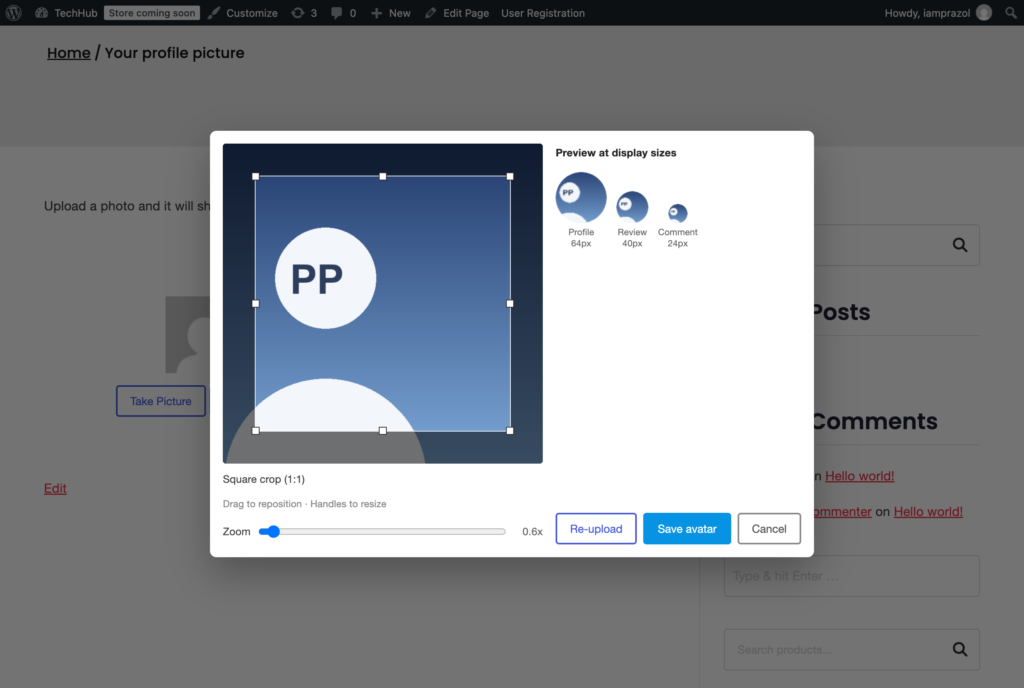
The rotation is applied to the pixels before the file is stored, so what lands in your media library is upright — no metadata dependency, nothing for a future resize to strip.
Fixing them after the fact is manual, because the information needed to fix them automatically has usually been thrown away:
magick mogrify -auto-orient or the equivalent. This reads the tag, rotates the pixels, and clears the tag, so the files are unambiguous afterwards.Two rules cover almost every case:
Which is really the same rule twice: fix it once, at the point where you still have all the information, and never make anything downstream care.