
 USE CASES
Every front-end upload form is an invitation to put a file on your server. Most of the time it is a photo of somebody’s face. The question that matters is what happens the rest of the time — and it is a fair question to ask of any plugin before you install it.
Here is what a well-built uploader checks, using Advanced User Avatar’s as a worked example. If you are evaluating a different plugin, this is a usable audit list.
WordPress AJAX handlers register under wp_ajax_* for logged-in users and wp_ajax_nopriv_* for anonymous ones. Registering an upload handler under the second is a serious mistake, and a surprisingly easy one to make by copying a snippet.
None of this plugin’s handlers are exposed to nopriv. That was not always true — in an earlier version upload and remove were, which meant an anonymous request reached WordPress’s upload handling before the code ever looked at who was asking. It was fixed; the fact that it was ever there is a good illustration of how the mistake happens.
Being logged in is not enough. Without a nonce, any other site can make your logged-in users submit that form by visiting a page. Every handler here starts with check_ajax_referer() before it looks at anything else.
The target user comes from the request, so it cannot be trusted. The rule enforced is: you may change your own picture, or somebody else’s if you have edit_user for them. That check is a function you can call yourself — wpmake_aua_current_user_can_edit_avatar( $user_id ) — and the handlers call it before doing any work.
There is a second, subtler check worth calling out, because it is the kind of thing that gets missed. Assigning an existing media item as an avatar is a different operation from uploading a new one: it lets the caller name any attachment ID on the site. So that endpoint additionally requires upload_files.
Why it matters: the “Choose from Media Library” button is only rendered for users who can upload files, but the nonce is available to every logged-in user on the page. Without the capability check on the server, a subscriber could post an attachment ID and help themselves to any image on the site. A rendered button is not a permission.
The one everybody thinks of, and the one most often done wrong. Checking the extension on the supplied filename is not a check — the filename is supplied by the client, and renaming script.php to photo.jpg defeats it entirely.
The type has to be read from the file’s own contents. This plugin uses WordPress’s wp_check_filetype_and_ext(), which sniffs the real type off the temporary file and compares it to the extension, then checks the result against the types you allowed in settings.
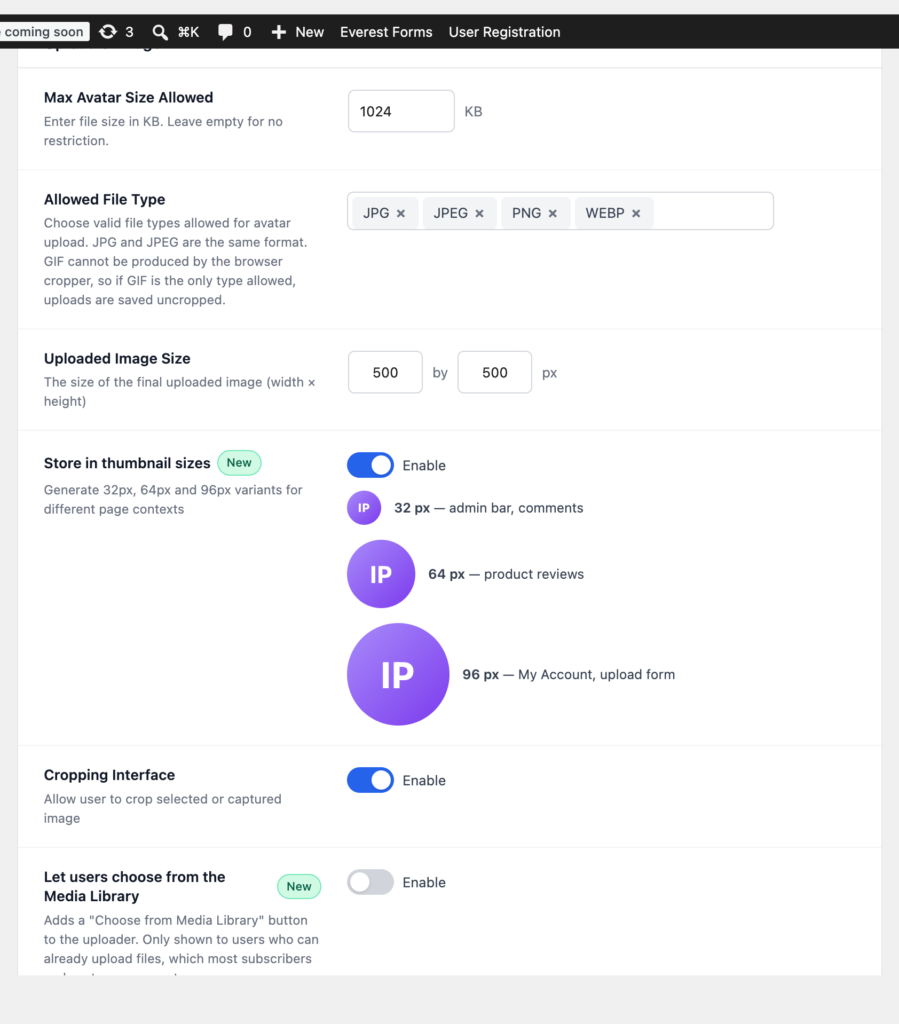
A size limit in the browser is a convenience, not a control — the browser is the attacker’s software. The ceiling has to be enforced server-side, and it is: an over-size file is refused with a message naming the limit, rather than filling your disk or timing out.
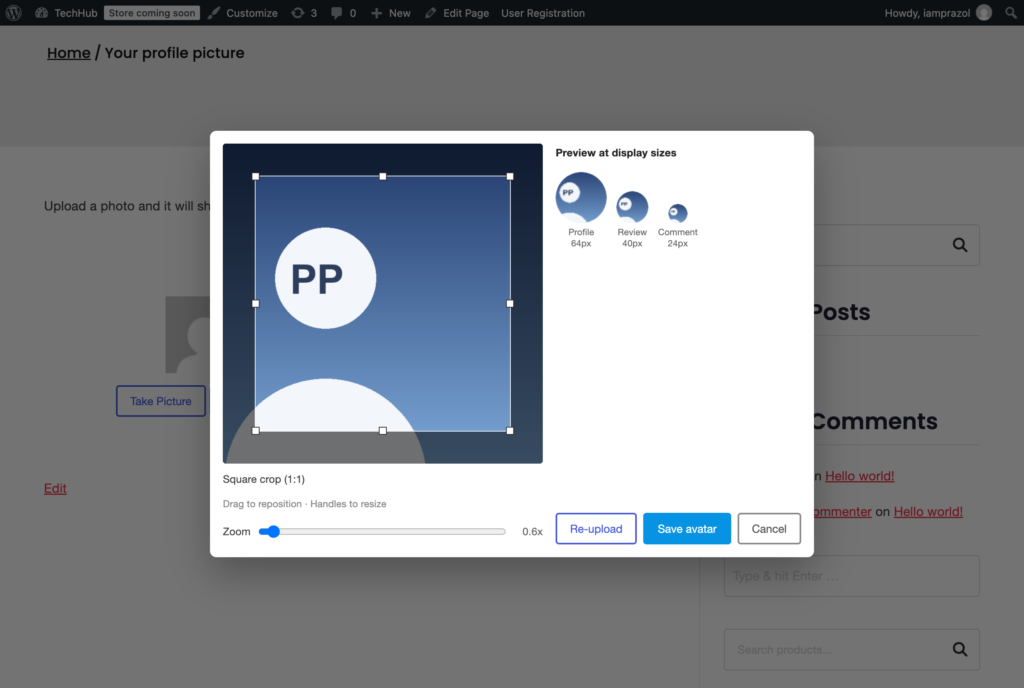
The same applies to the cropping step. Cropping in the browser is a real optimisation — it means a 4 MB phone photo becomes a small square before it is uploaded — but the server still resizes to the configured dimensions itself. Nothing about the final stored image depends on the client having behaved.
Avatars go to wp-content/uploads/wpmake-advance-user-avatar/ and are registered as normal attachments, which means they inherit whatever hardening you have already applied to your uploads directory — and if you have not applied any, blocking PHP execution under wp-content/uploads is worth doing regardless of which plugins you run.
One detail worth noticing: the attachment’s author is set to the person the avatar depicts, not the administrator who uploaded it. That keeps the media library’s ownership honest, and makes it possible to find every photo belonging to one person when somebody asks you to delete them.
nopriv handler anywhere near an uploadSeven checks. Any upload feature missing one of the first four is a vulnerability rather than a feature — and they are worth asking about before you put a form on your front end, whatever plugin is behind it.