
 TUTORIAL
WooCommerce gives customers an account area with orders, addresses and account details in it — and no way to set a profile picture. Adding one usually means a template override or a shortcode dropped onto a page customers never visit. There is a shorter route.
Install Advanced User Avatar, go to Users → Users Avatar, and in the WooCommerce Display section switch on My Account uploader. Save.
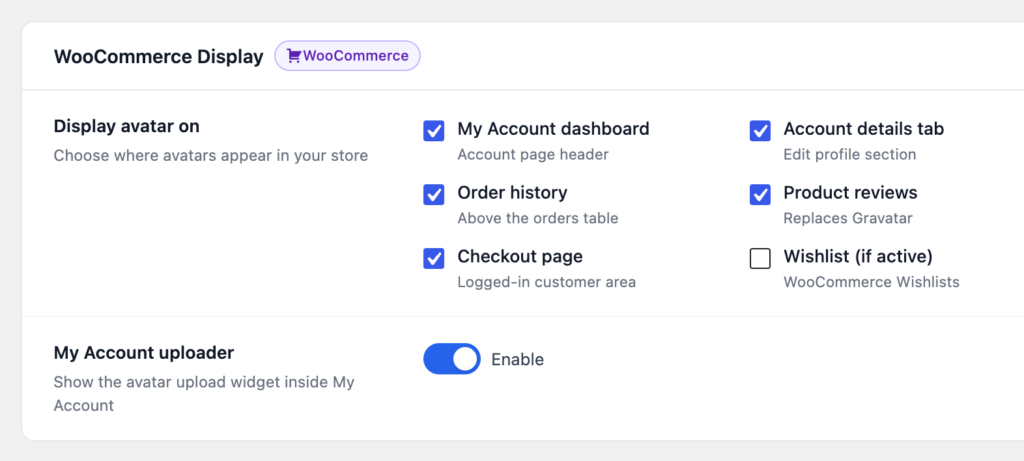
That is the whole configuration. The upload widget is now on the Account details page, above the name and email fields.
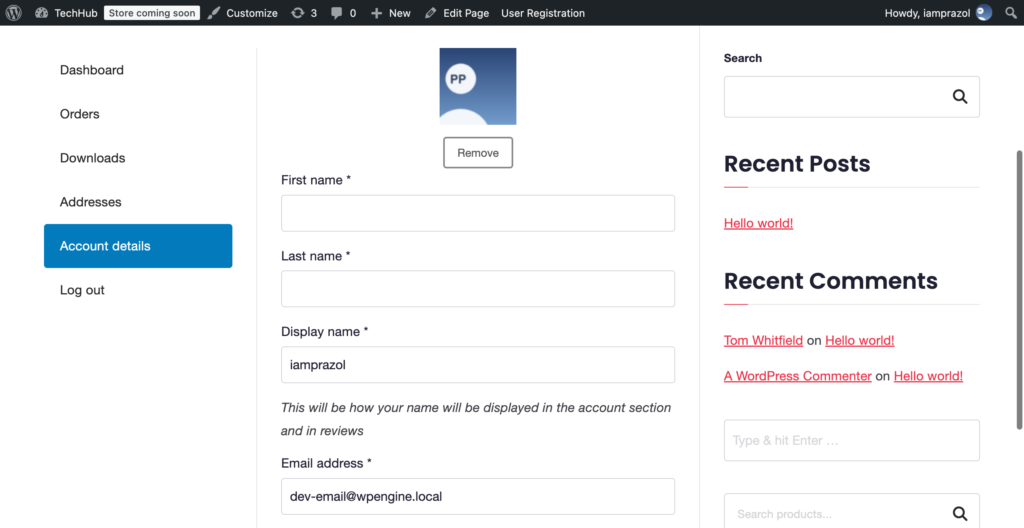
Because it is the page a customer already opens when they want to change something about themselves. Every other option asks them to learn that a new page exists:
They press Upload file, pick a photo, and get a square crop with a zoom slider and live previews. They save, and the picture is theirs.
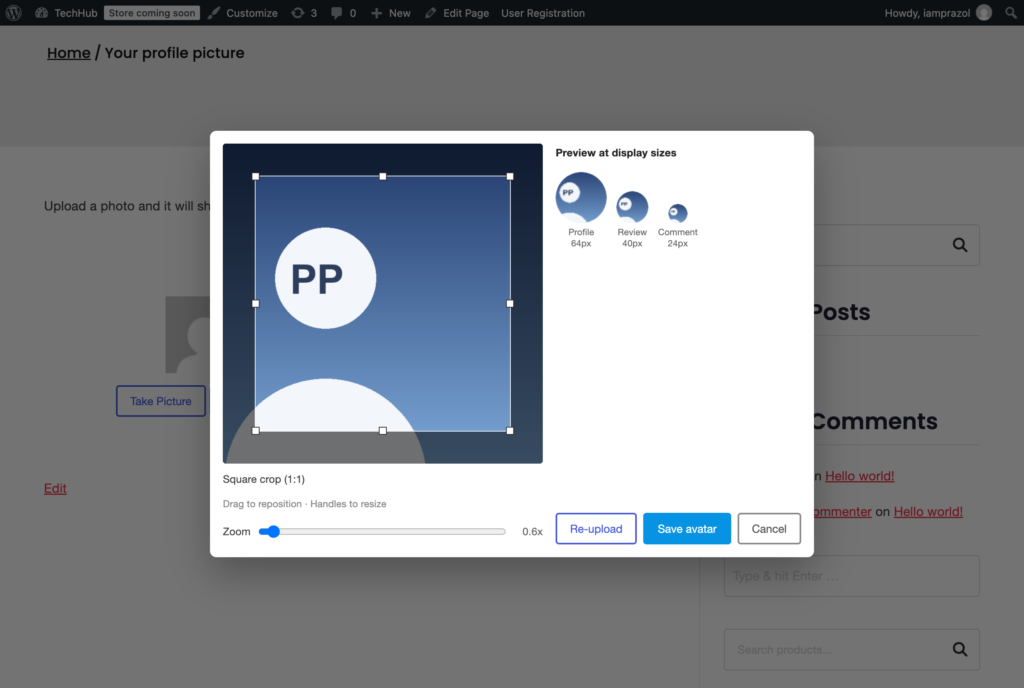
Note that the avatar saves on its own — it is not tied to the Save changes button at the bottom of the Account details form. Customers do not have to fill in their current password to change their picture, which is exactly what you want, because requiring a password to change a photo is a good way to get no photos.
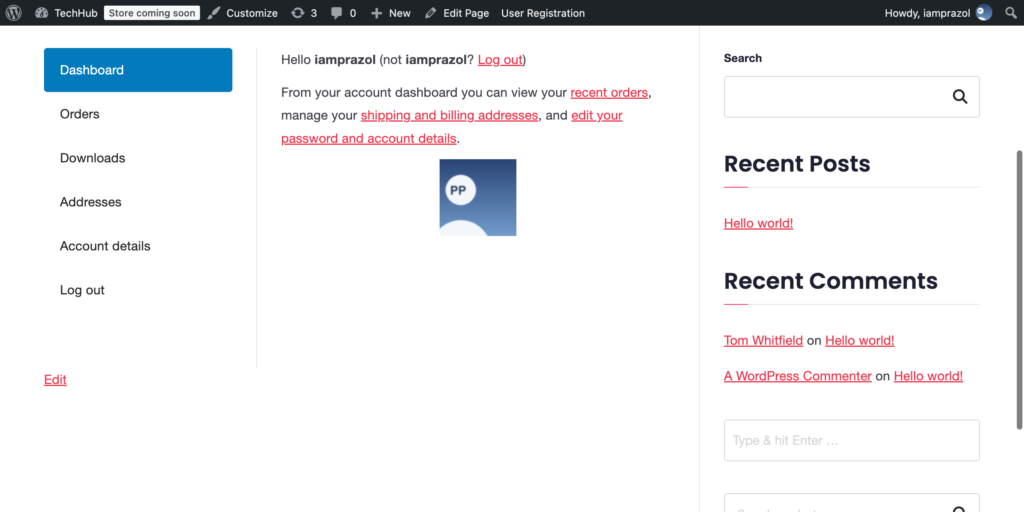
Anywhere you have switched on in the same settings section — the dashboard greeting, the orders page, product reviews, checkout — and everywhere else on the site that renders an avatar, because this is a WordPress avatar, not a WooCommerce-only one.
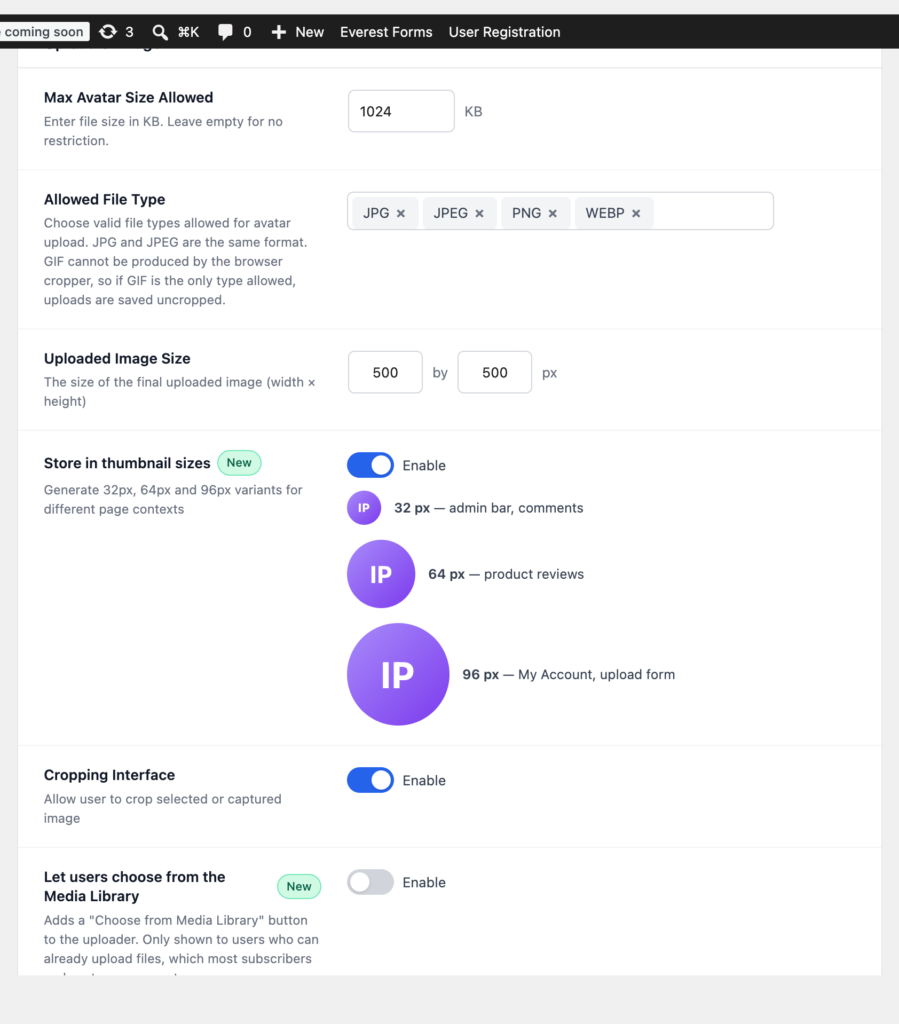
Max file size. Customers upload photos straight off their phones, which are routinely 3–5 MB. The default 1 MB limit is fine because the crop happens in the browser first, but if you switch cropping off, raise the limit or you will get complaints.
Media library access. Leave Let users choose from Media Library off. It only ever appears for people who can already upload files to the site, so customers never see it anyway — but there is no reason to have the option on for a store.
The widget is deliberately plain so it inherits your theme. If the buttons do not match your store’s, every size, shape and colour is a CSS custom property, so one rule in Appearance → Customize → Additional CSS restyles it without a single !important:
.wpmake-advance-user-avatar-container {
    --wpmake-aua-avatar-size: 120px;
    --wpmake-aua-avatar-radius: 50%;
    --wpmake-aua-btn-primary-bg: #7f54b3;
    --wpmake-aua-btn-radius: 3px;
}
Set those to your theme’s own button colours and the uploader stops looking like a plugin and starts looking like part of the store — which, on the page where you are asking customers to do something optional, is worth the five minutes.