
 TUTORIAL
Open Users → Profile on a stock WordPress site and you will find fields for your name, your nickname, your bio, your colour scheme, and a line of text explaining that to change your profile picture you should go and sign up at Gravatar.
That is the first place everybody looks, and it is the one place the answer is not. Here is how to put a real field there.
Install and activate Advanced User Avatar. That is the entire setup for this particular job — the field is added to the profile screen automatically, with nothing to configure and nothing to place.
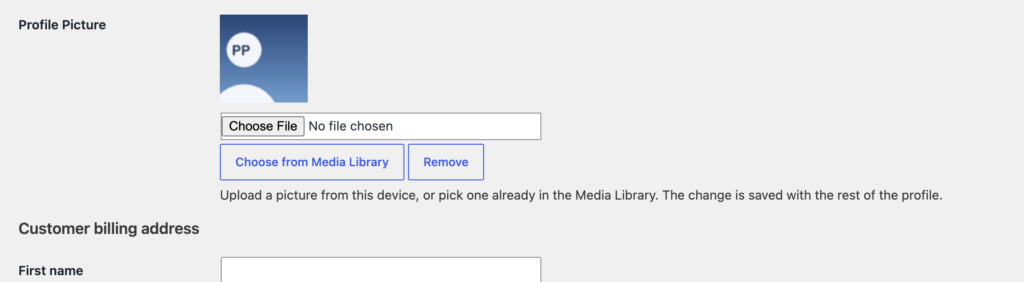
Three actions, depending on what the person is allowed to do:
The preview above the buttons updates as soon as you pick something, so you can see what you are about to save. Nothing is written until you scroll down and press Update Profile — a change you think better of can be abandoned by leaving the page.
The rule is the ordinary WordPress one. Your own picture is always yours to change. Somebody else’s requires permission to edit that user, which in practice means an administrator.
Choose from Media Library is the exception worth knowing about: it requires the ability to upload files, so it appears for authors, editors and administrators, but not for subscribers or WooCommerce customers. Those users still get the upload button, which is the one they actually need. On a store whose users are all customers, this distinction never comes up.
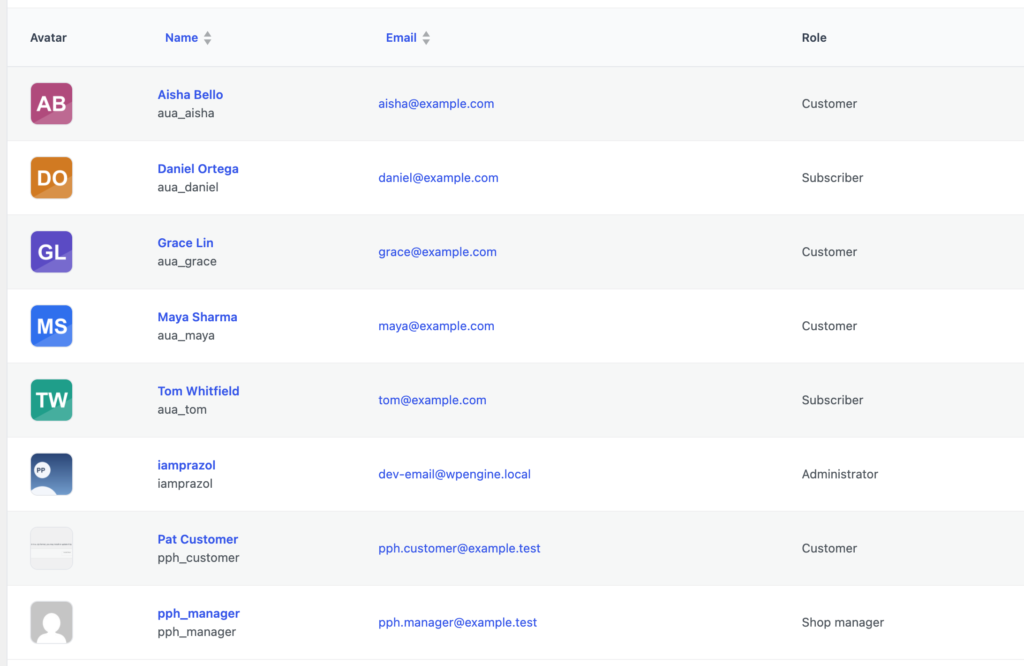
Go to Users → All Users, click a name, and you get the same field on their profile. That is fine for one person. For a batch — a set of staff photos, a list of accounts imported without pictures — use the Manage Avatars tab at Users → Users Avatar instead, which lists every user with their current photo and a Change button on each row.
Save the profile and look at the admin bar. The greeting in the top right picks up the new picture immediately — and it does so at 32 pixels, not by scaling down your full-size original, because smaller square copies are generated on upload.

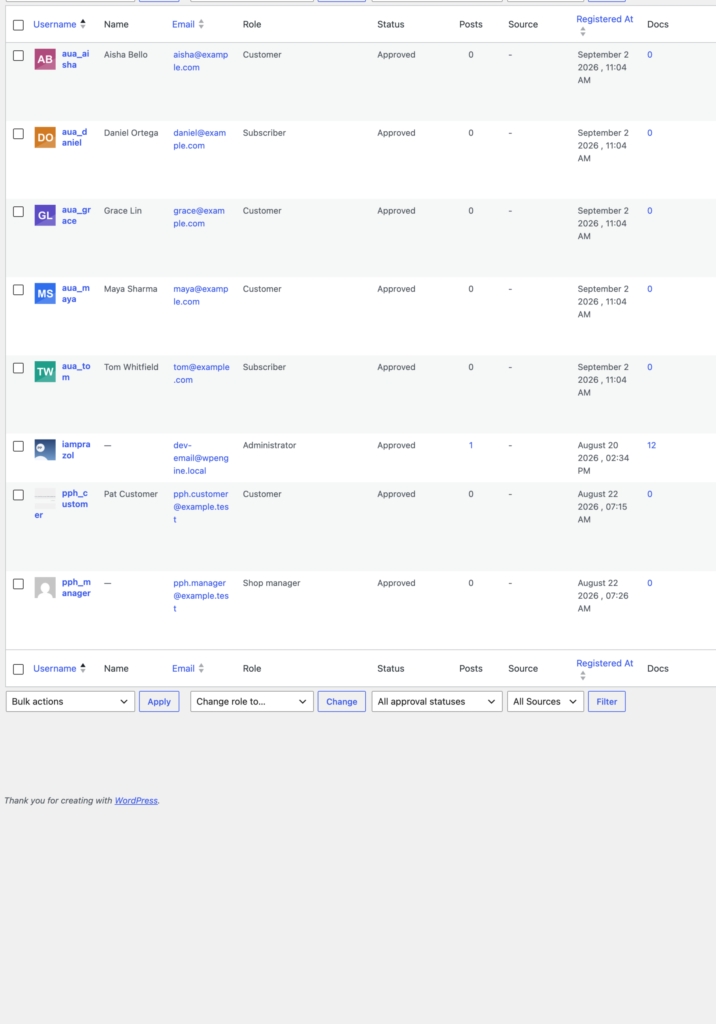
Everywhere. The field does not only affect the profile screen — it sets the user’s avatar site-wide, so the same photo appears in the Users list, in comments, in author boxes, in the REST API, in the block editor’s author panel, and in any plugin that asks WordPress for an avatar in the normal way.
If you want your users to be able to do this without visiting the admin at all, the same plugin gives you a front-end uploader as a block or a shortcode. But for an editorial team, an agency, or any site where the people with photos are the people with logins, the profile field on its own is often the whole solution.