
 USE CASES
You are launching something. A product, a course, a service, a feature. You want anticipation before the doors open — a page that teases what is coming, a countdown that creates urgency, a reveal that feels like an event rather than a publication.
WordPress has no native tool for this. Scheduled posts publish to everyone at once with no locked preview state, and a “coming soon” plugin usually takes your whole site down. What you actually want is one page that exists, that people can find and bookmark, that shows a countdown — and that reveals its full content at a precise moment.
Publish your launch page as normal content. Add a time lock with the exact reveal date and time. Before that moment visitors see your locked screen, which you control completely; after it, the full page appears on the same URL with no redirect and no manual step.
The locked screen is your pre-launch real estate. It is not a dead page — it is where the countdown, the teaser copy, the waitlist signup and the early-access CTA live.
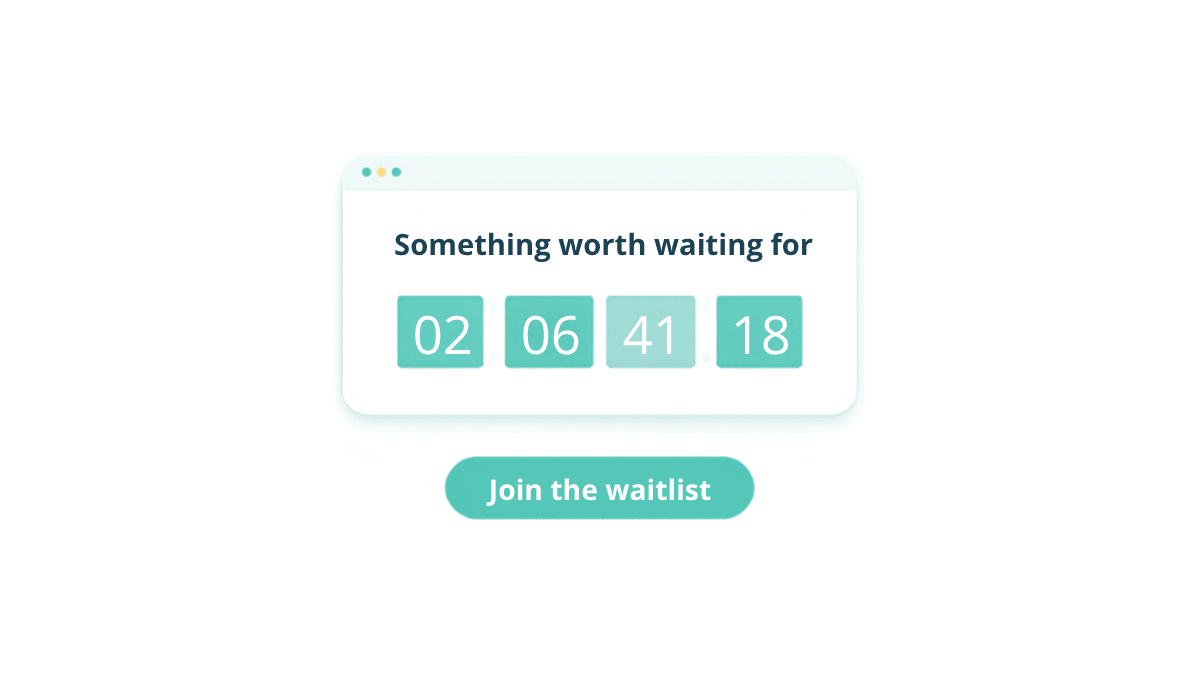
Your sales page exists but is locked until launch day. You share the URL in advance — in newsletters, on social, in your community. People arrive, see the countdown, and bookmark it. At launch the page reveals pricing, testimonials and a buy button. Nobody has to be awake at midnight to press publish.

You have a community or a course platform and you are launching something new. Set the unlock to 48 hours before public launch and restrict to logged-in users, and your members get a genuine head start on the same page everyone else sees two days later. No duplicate pages, no separate URLs to keep in sync.
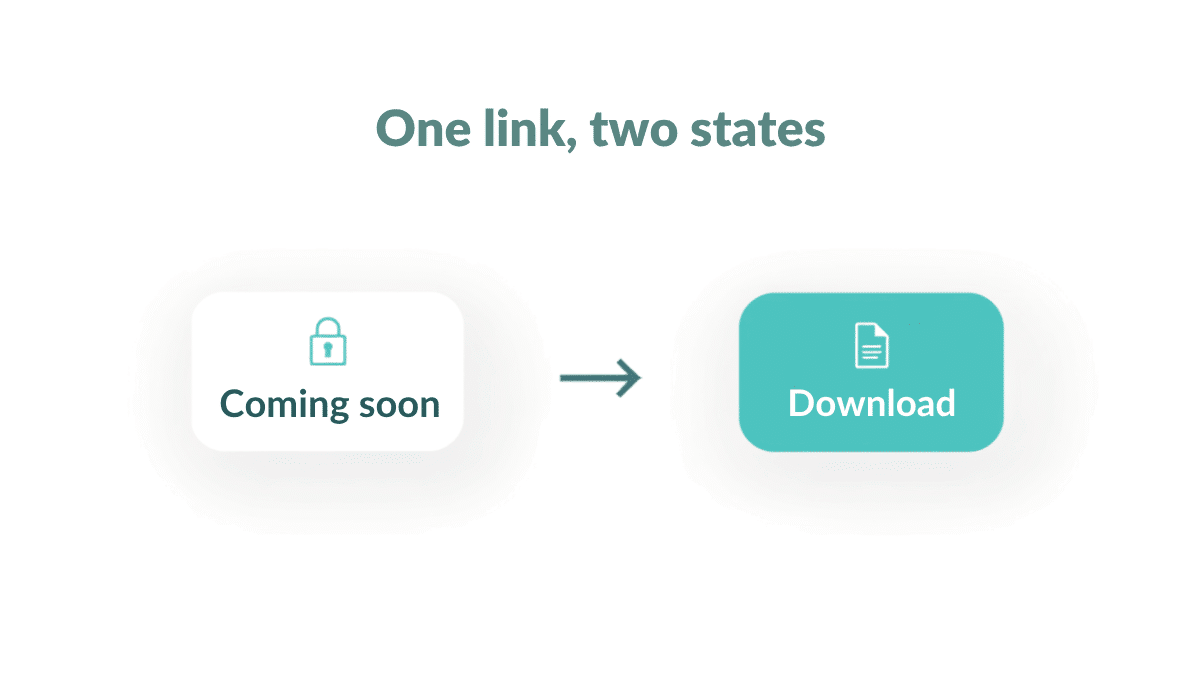
You have been collecting emails for a guide, a template pack or a tool. On the drop date the download page unlocks. The link you emailed three weeks ago becomes live on its own — no second email with a “here is the real link” correction, no page to update at 9am.
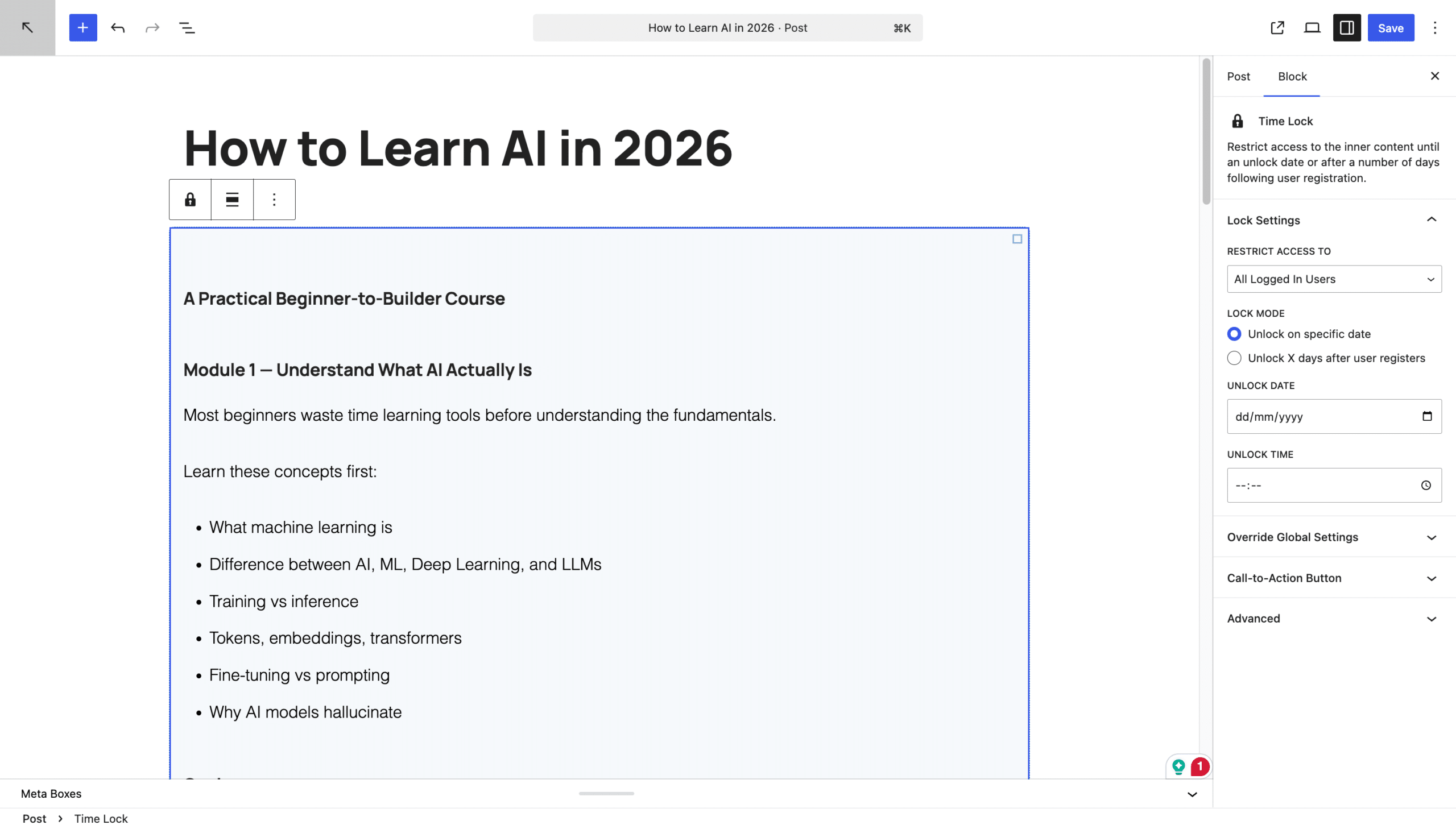
Open your launch page in the block editor and find the Time Lock Content panel in the sidebar. Enable the lock, set the exact date and time, and choose who is restricted. For a public launch pick Guest Users — everyone logged out sees the countdown, while you can still preview the real page from your admin account.
Check Settings → General for your site timezone before you commit to a time. A launch that opens 5 hours early because the site is still on UTC is a bad way to find out.
Turn the countdown on and choose a template. For a launch page, Classic flip-digits create the most urgency; the quieter Default style is better suited to course lessons. Then write the pre-launch message. Keep it short: “Something is coming. 12 March. Be here.” Or make it useful: “Drop your email below and we will remind you the moment this goes live.” Add a call-to-action button pointing at your signup form.
One date is a launch. Three dates are a campaign. Because each post carries its own lock, you can stage the whole thing in advance:
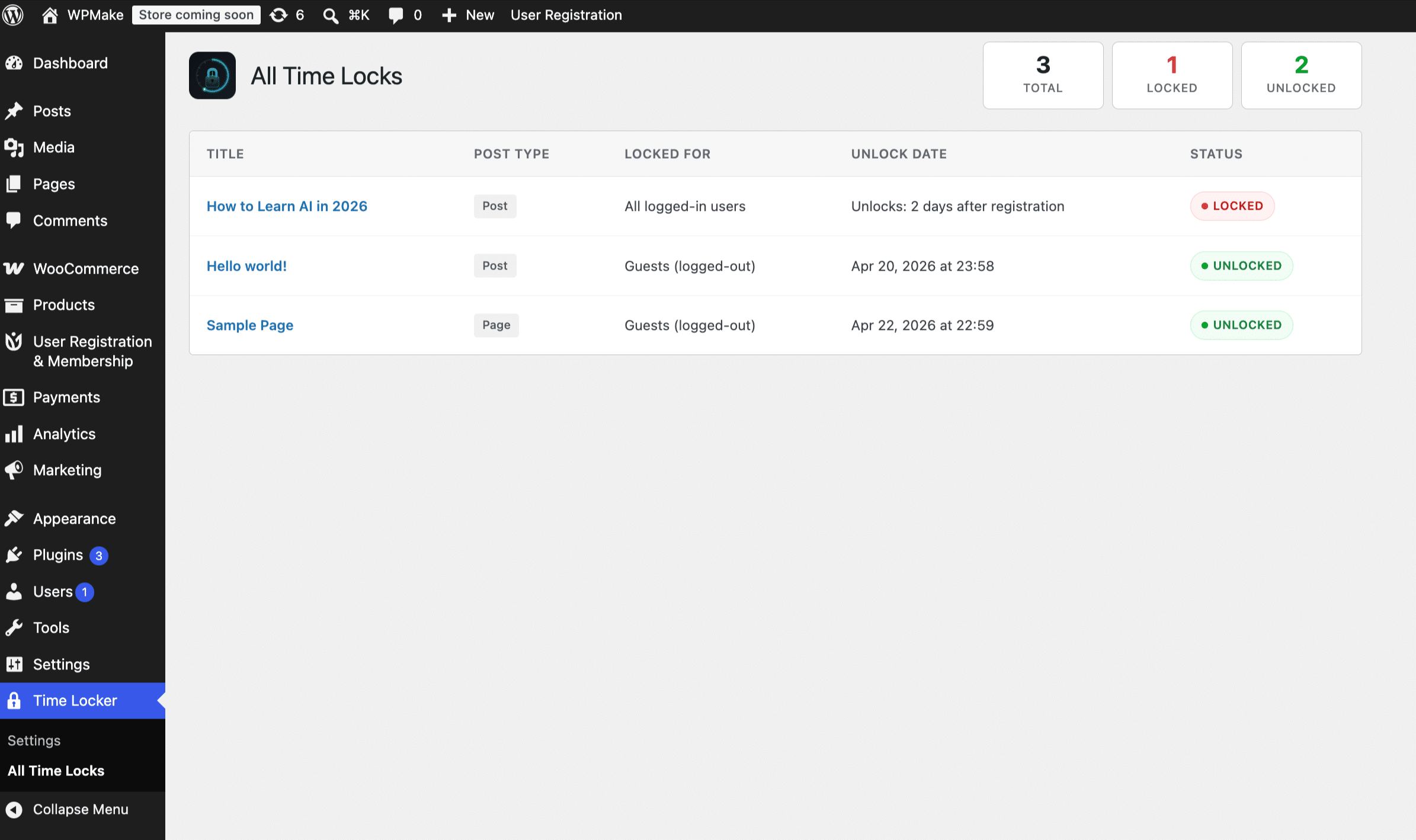
Set all three in advance and the sequence runs itself. The All Time Locks screen shows every lock and its date in one list, which is the only place you need to look on launch morning.
No. The lock is checked on every page load, so the page opens itself the moment the clock passes your date.
No. The locked content is filtered out on the server, so it never reaches the browser.
Yes — that is the early-access pattern above. Restrict guests until the public date while logged-in members unlock earlier.
The URL, title and meta description stay crawlable while the body is gated, and the full page is indexed after launch. More detail in Does locking WordPress content affect SEO?
Set the dates, write the locked screen, queue the emails, and let the pages open themselves. If you are weighing this against simply scheduling the post, the difference between scheduling and locking is worth reading first, and the countdown timer guide covers the templates and copy in more depth.
Install Timed Content Locker and set up your reveal countdown today.