
 USE CASES
An advent calendar is a content drip in disguise. Twenty-four posts, each locked until its own date, each revealing something new — a recipe, a tip, a template, a discount. It is one of the most engaging formats of the holiday season, it earns you twenty-four reasons to email your list, and it is entirely achievable on WordPress with a time lock plugin and one focused afternoon.
Here is the whole build, in the order you should actually do it.
Map out what opens on each day first. Twenty-four pieces of content sounds enormous, but most advent calendars do not need twenty-four full articles. A mix that works:
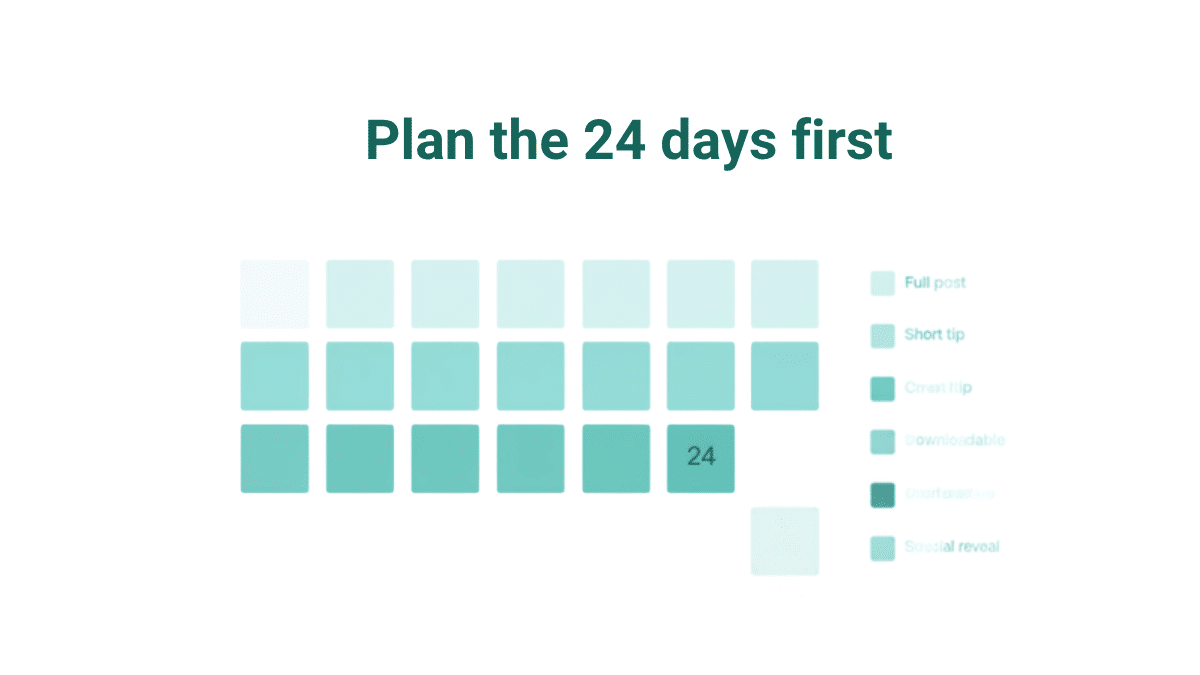
Write the content first. Trying to write and schedule at the same time is exactly how advent calendars get abandoned around 10 December.
Each day is a normal WordPress post. Use a consistent naming convention (“Advent Day 1: [Title]”) so they sort cleanly in your posts list, and assign them all to a single “Advent Calendar” category so you get an archive for free.
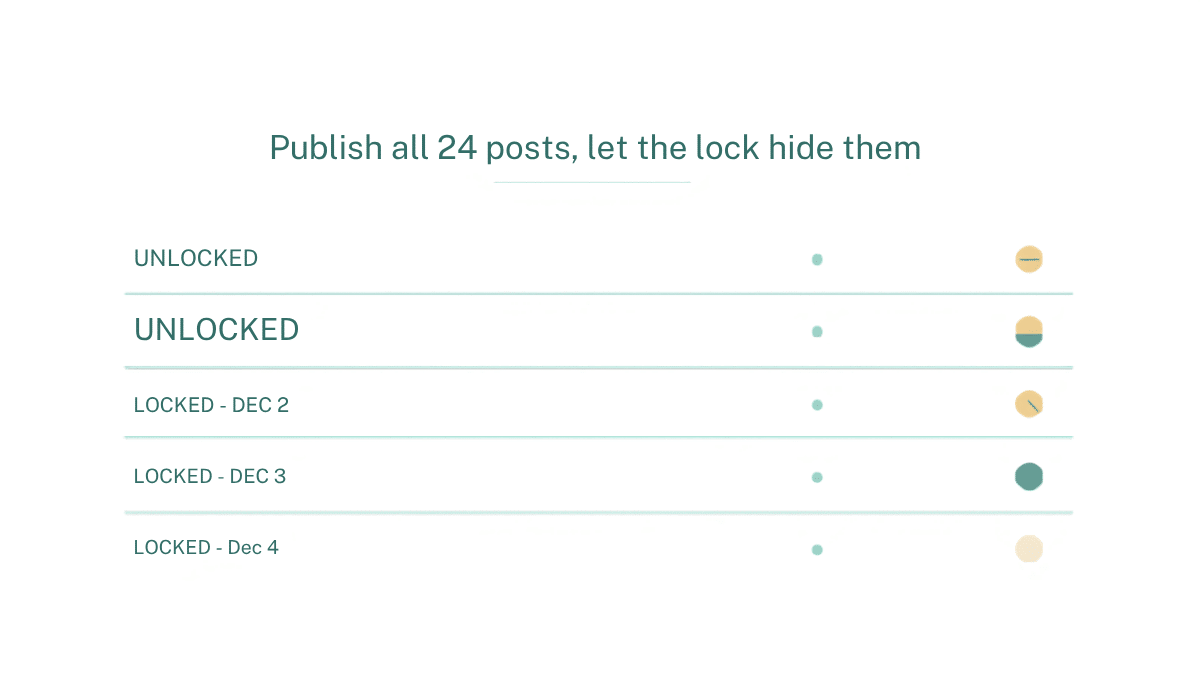
Then publish all twenty-four immediately. This is the step that feels wrong and is not: the time lock handles visibility, not the publish status. A published post with an active lock shows the locked screen to anyone who hits the URL before its date — and, unlike a draft, it has a real URL you can link to from your calendar page in November.
Install Timed Content Locker and start in Tools → Timed Content Locker → Global Settings. Set a default locked message with some personality — “This door isn’t open yet. Come back on December 12!” — and turn on the countdown timer so every closed door shows exactly how long is left. The Classic flip-digit template suits this format better than the quieter styles.
Then open each post and set its unlock date in the Time Lock Content panel: Day 1 opens 1 December at 00:00, Day 2 on 2 December, and so on. Before you start, check Settings → General and confirm your site timezone, because every one of these twenty-four dates depends on it.
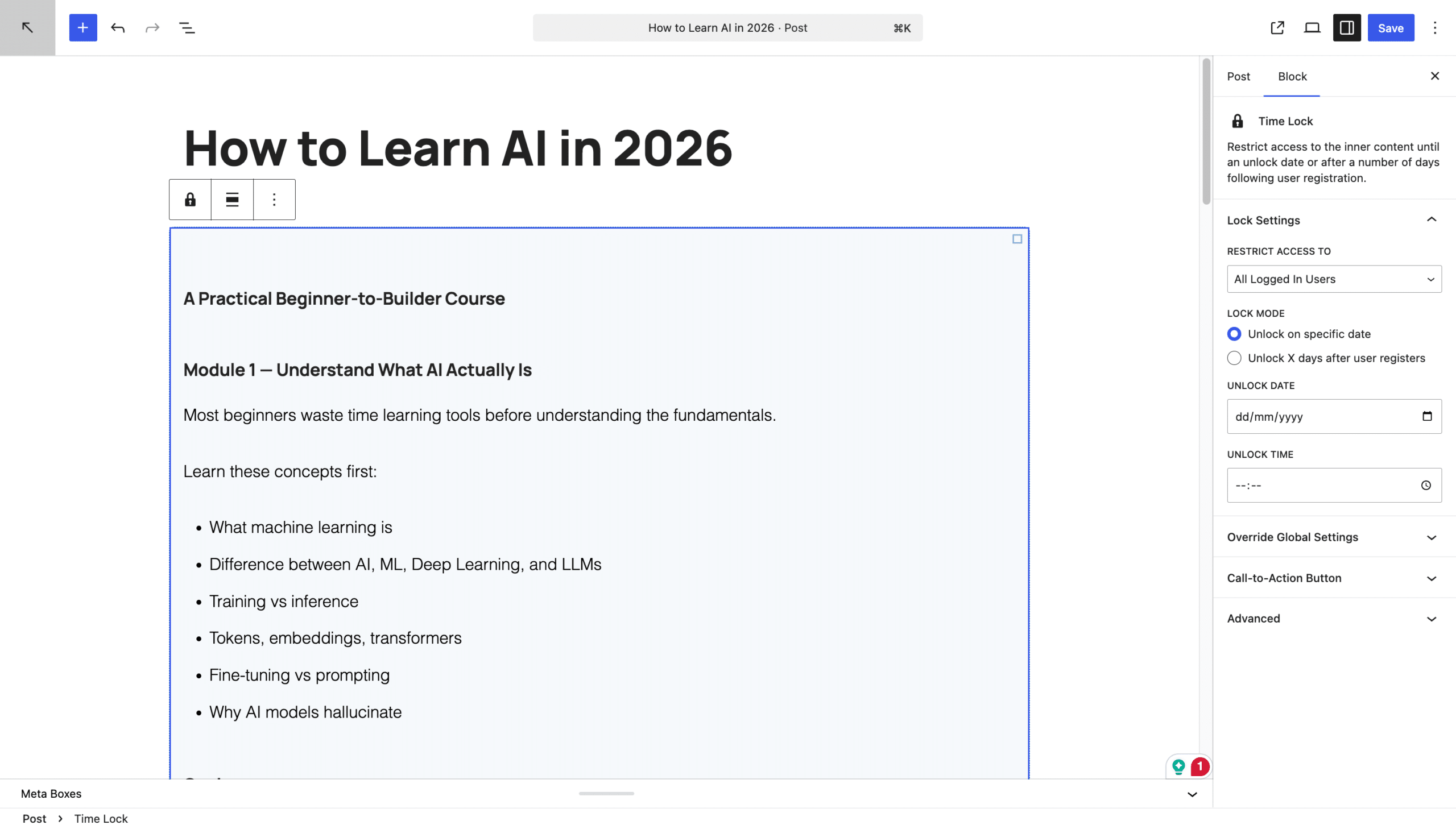
For a public advent calendar, restrict Guest Users: the content is open to everyone once its day arrives, and nobody gets in early. If you want even logged-in members to experience the daily reveal, use All Users instead — administrators still see everything, so you can keep working.
Create one landing page that links to all twenty-four posts. This is your calendar door. A numbered list works; a grid of numbered tiles works better, and you can build one with any block theme or page builder you already use.
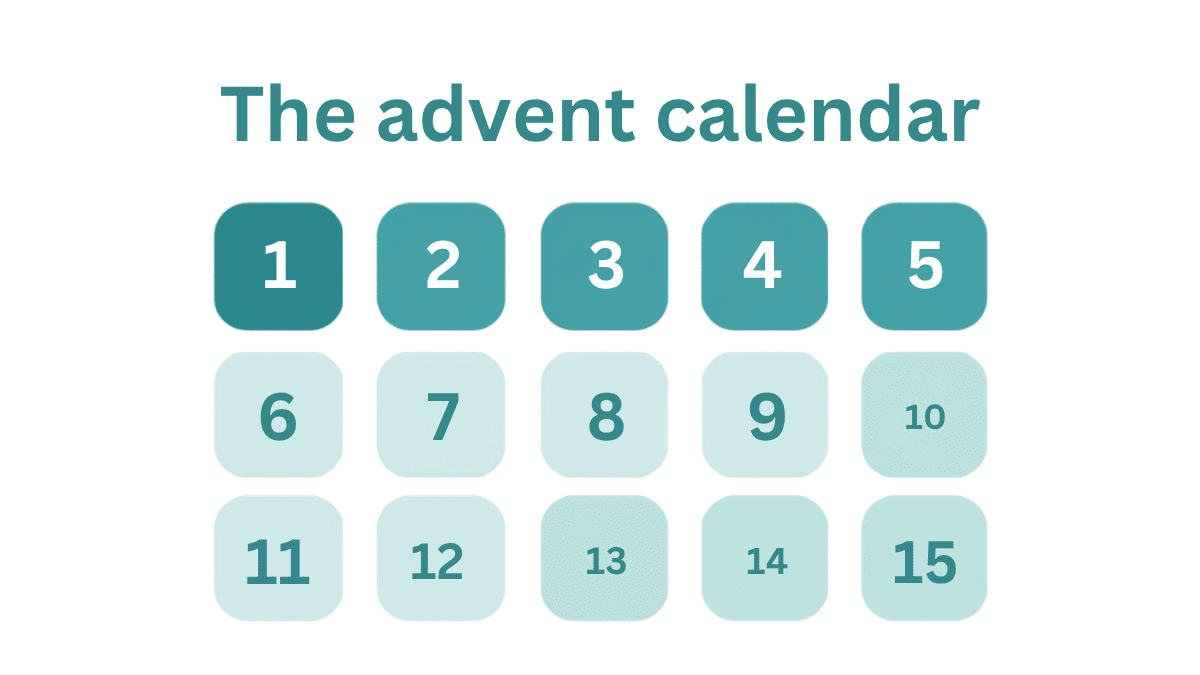
Link every day from this page, including the ones that have not opened. Clicking a closed door takes the visitor to that day’s locked screen and its countdown — which is a feature, not a dead end. That is the anticipation doing its job.
Publish the landing page in late November and start promoting before the first door opens. The locked posts already exist, so early visitors can click through, see the countdowns and bookmark the page. Early traffic builds the habit of checking daily.
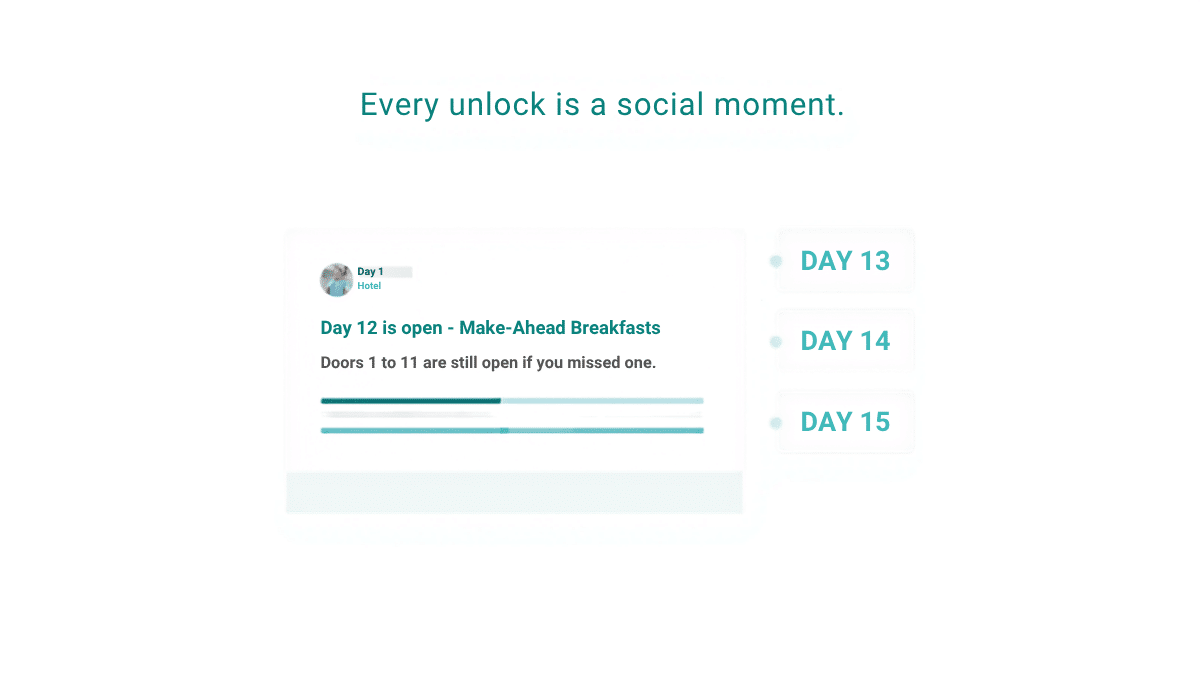
Each day’s opening is a social moment: “Day 7 is open — [teaser].” Latecomers get a growing archive to binge, which is worth more traffic than the daily reveals themselves. Queue all twenty-four social posts in November alongside the content and December needs nothing from you.
Publish them. A draft has no public URL, so your calendar page would link to nothing until each day arrives. The lock is what hides the content.
Open the post and change the unlock date. It takes effect immediately — there is no scheduled task to reschedule and nothing to republish.
Their titles and URLs are crawlable while the body is gated, and the full content gets indexed once each day opens. Details in Does locking WordPress content affect SEO?
Yes. The posts stay published; you just move the unlock dates forward twelve months and refresh whichever days need new content.
Build it in November, set twenty-four dates, and December runs itself. If you want to understand the mechanism first, scheduling and locking are not the same thing, and the countdown timer is what makes a closed door feel like an event rather than an error.
Install Timed Content Locker and build your advent calendar before December starts.