
 TUTORIALS
If you have ever tried to hide a WordPress post until a specific date, you have probably tried scheduling it. Set the publish date to next Tuesday, WordPress publishes it at midnight, job done — right?
Not quite. Scheduled posts and content locks solve two different problems, and mixing them up leads to content that is visible to the wrong people at the wrong time, or to a false sense of access control you never actually set up. Here is what each one really does.
A scheduled post is a draft with a publish date in the future. Before that moment it does not exist publicly: it is not indexed, not linkable, and not visible to anyone except logged-in editors and administrators. There is no URL to share, because there is nothing at the URL yet.
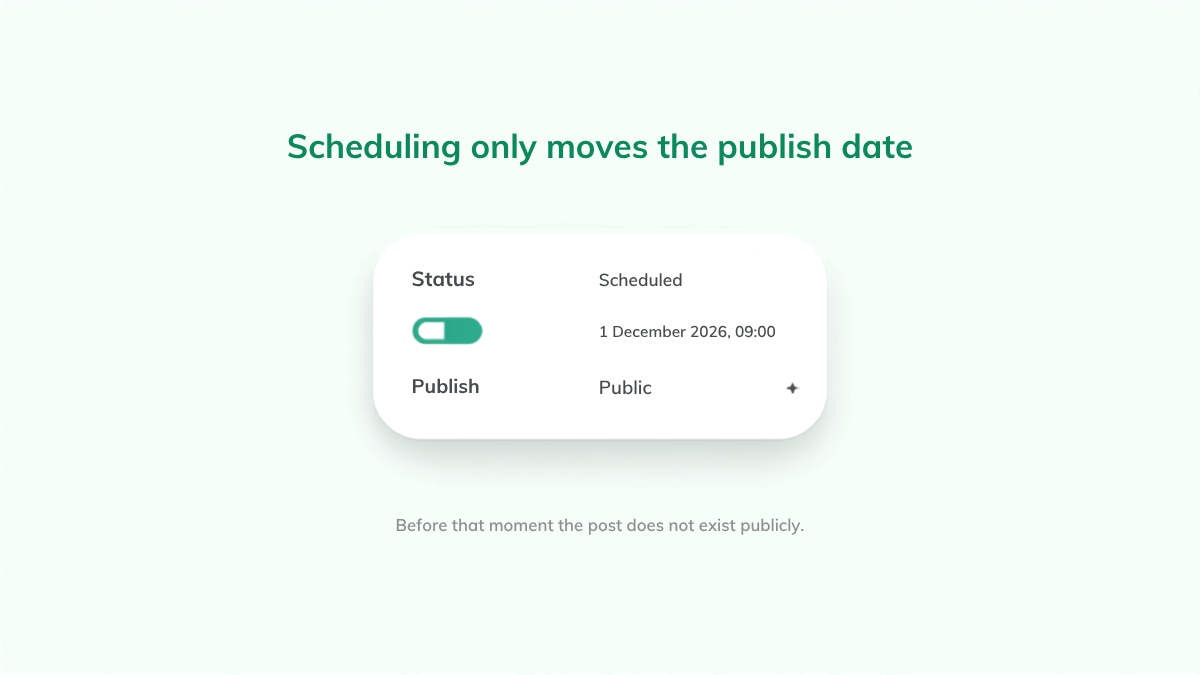
At the scheduled time it publishes, and it publishes for everyone at once — logged-in members, logged-out visitors and search engine crawlers, with no differentiation. That makes it perfect for planning ahead, keeping a consistent publishing rhythm, or timing an announcement to a specific hour.
It is the wrong tool for giving some users early access, for hiding a lesson from enrolled students until their course reaches it, or for building a drip sequence where different people unlock the same page on different days.
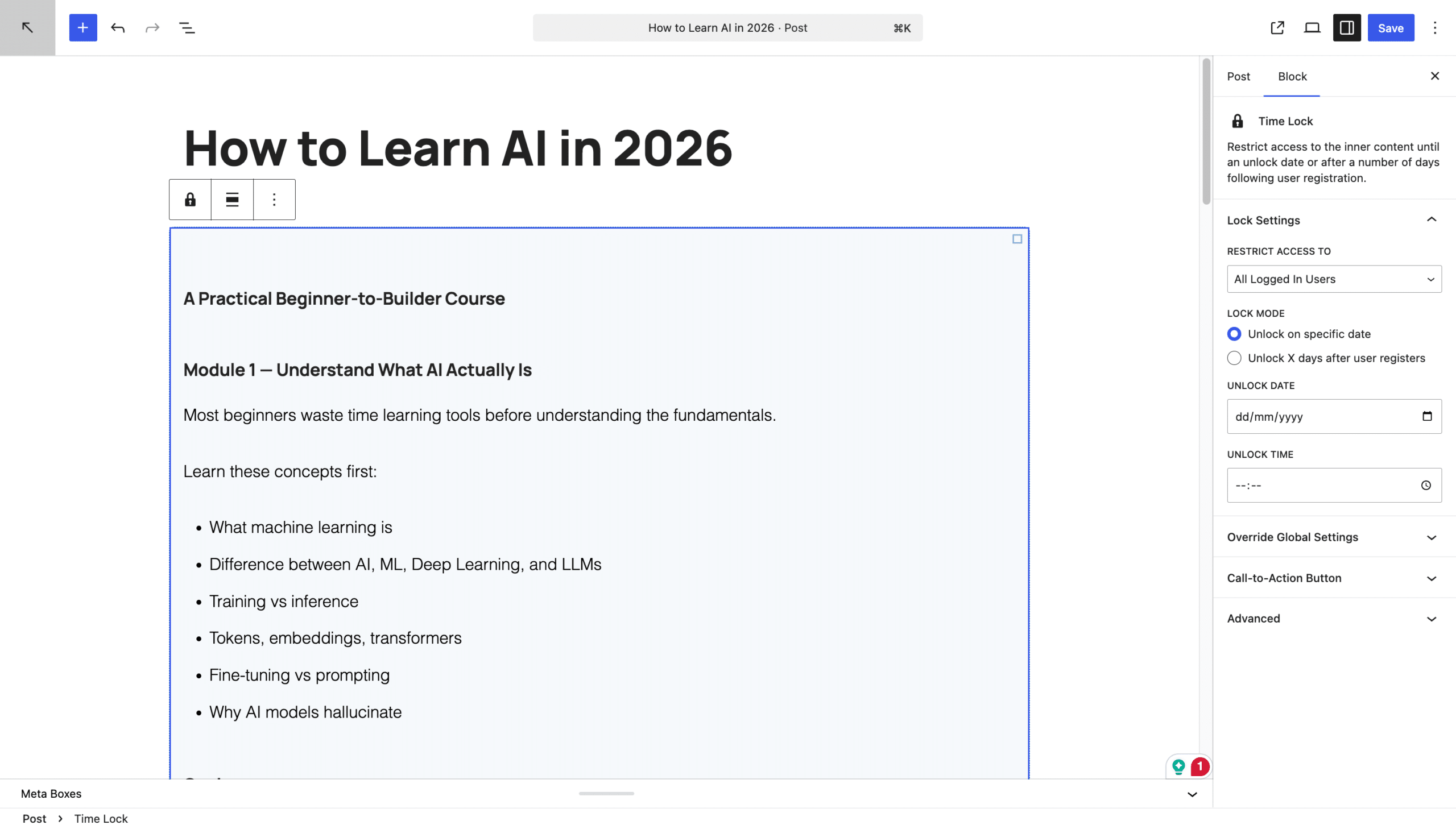
A content lock is applied to a post that is already published. The post exists. It has a URL, it can be linked from your navigation and your emails, and it can be found. But when someone visits before the unlock date, the plugin swaps the post body for a locked screen — typically a short message and a countdown.
The content itself is never sent to the browser while the lock is active, so it cannot be read from the page source. And because the check happens server-side on every page load, the content appears on its own the moment the date passes.
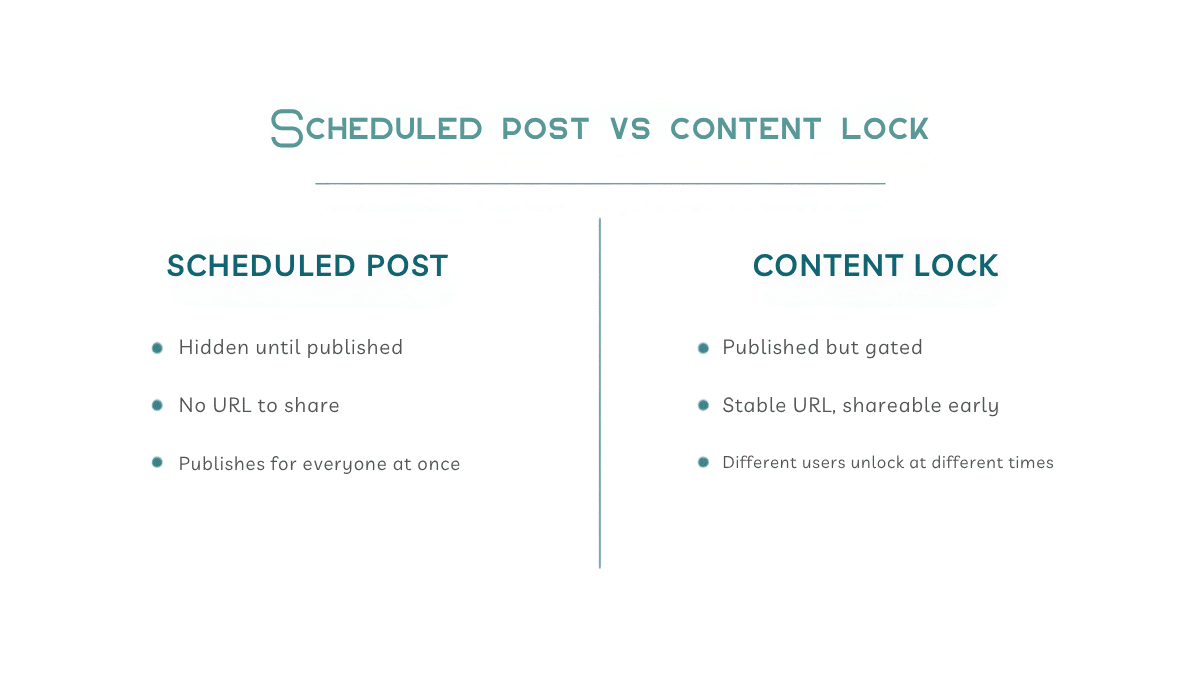
You want the content public to everyone at a specific moment, you do not need access control, and you do not need a URL beforehand. A blog post going live Tuesday morning. A seasonal article publishing on 1 November. A press announcement timed to an embargo.
You want the post to exist and be linkable before it reveals, you need to control who sees it and when, or you are building a sequence where different users unlock the same content on different days. Course lessons on a schedule, member onboarding, launch countdowns, advent calendars.
Yes, and for some launches it is the right move. Schedule a post to publish publicly on a specific date so it lands in your archive and gets indexed, and add a content lock that opens it for logged-in members 48 hours earlier. The post is published for everyone, but only unlocked early for members.
That combination is not possible with scheduling alone. Scheduling has exactly one lever — the publish date — and it moves that lever for everybody.
Someone builds a six-lesson course, schedules each lesson a week apart, and emails students the lesson links on day one. Half the links 404 because the posts do not exist yet. Then lesson three publishes and every student can read it, including the ones who only enrolled yesterday. Nothing here is broken — scheduling is doing exactly what it is designed to do. It is just not access control.
If you have been using scheduled posts to drip course content and wondering why students sometimes get things early or late, this is why.
Yes. The publish date and the unlock rule are independent settings, so a post can go public on one date and open its content on another.
The post is published, so its URL, title and meta description are crawlable while the body is gated, and the full content is indexed after it unlocks. We went through the detail in Does locking WordPress content affect SEO?
No. The lock is evaluated on the server, so the locked body is never rendered into the HTML that reaches the browser.
The lock stops applying and the post shows its full content, because the restriction lives in the plugin rather than in your content. Nothing you wrote is altered.
Scheduling controls publication. Locking controls access. If your question is “when does this become public?”, schedule it. If your question is “who can read this, and from when?”, lock it.
Ready to try the second one? Add a countdown to your locked screen, or follow the step-by-step drip course setup. Install Timed Content Locker and use the right tool for the job.