
 TUTORIAL
If you have just switched on self-service cancellation requests, the next question is almost always the same: can I approve the easy ones automatically? It is a fair thing to want. Reviewing forty low-value cancellations a week is not a good use of anyone’s morning.
The honest answer is that Post-Purchase Hub will not auto-approve anything, and the readme is unusually direct about it: “No, and it never will.” Here is the reasoning, and what to do instead — which, in practice, gets you most of the speed you were after.
The plugin’s position is that a cancellation request lands in a queue and nothing happens to the order until a person approves it. No rule engine, no “under fifty dollars goes through”, no exceptions. The Actions settings say the same thing twice, in the card description and again in the help text under the status checkboxes: a request is never an automatic cancellation.
The reasoning holds up. Approving a cancellation is not a data operation — it is a claim about the physical world. Has the parcel been picked? Has the label printed? Has it already left with the courier? WooCommerce order status is a decent proxy for that, but only a proxy, and the gap between the two is exactly where an automatic approval does damage: stock returned for a parcel already on a van, a customer told their order is cancelled while it is in transit to them.
The second reason is scope. The plugin never touches a payment gateway and never issues a refund; approving changes the order status and optionally restocks. An automatic approval would therefore produce a cancelled order that is still fully paid, quietly, with nobody aware of it. That is a worse outcome than a request sitting in a queue for two hours.
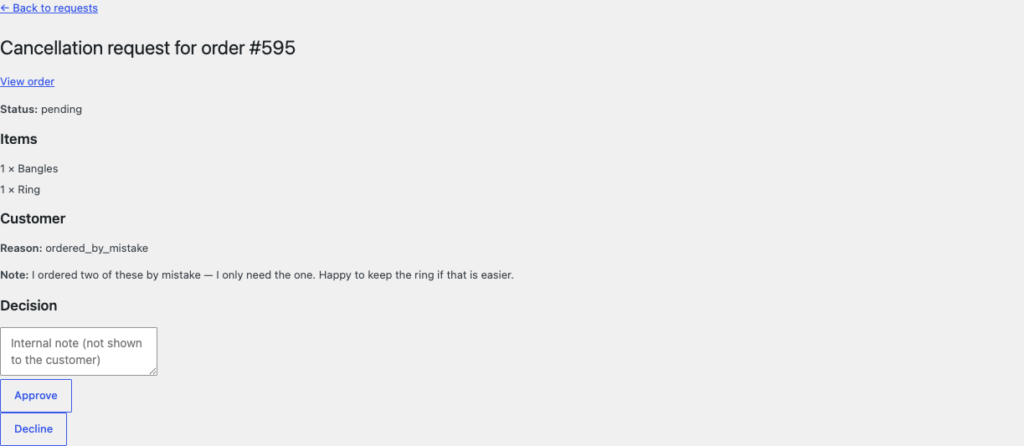
There is real automation on the Actions tab — it just runs at the other end of the process. Instead of deciding requests for you, the rules stop requests you would have declined from ever being submitted.
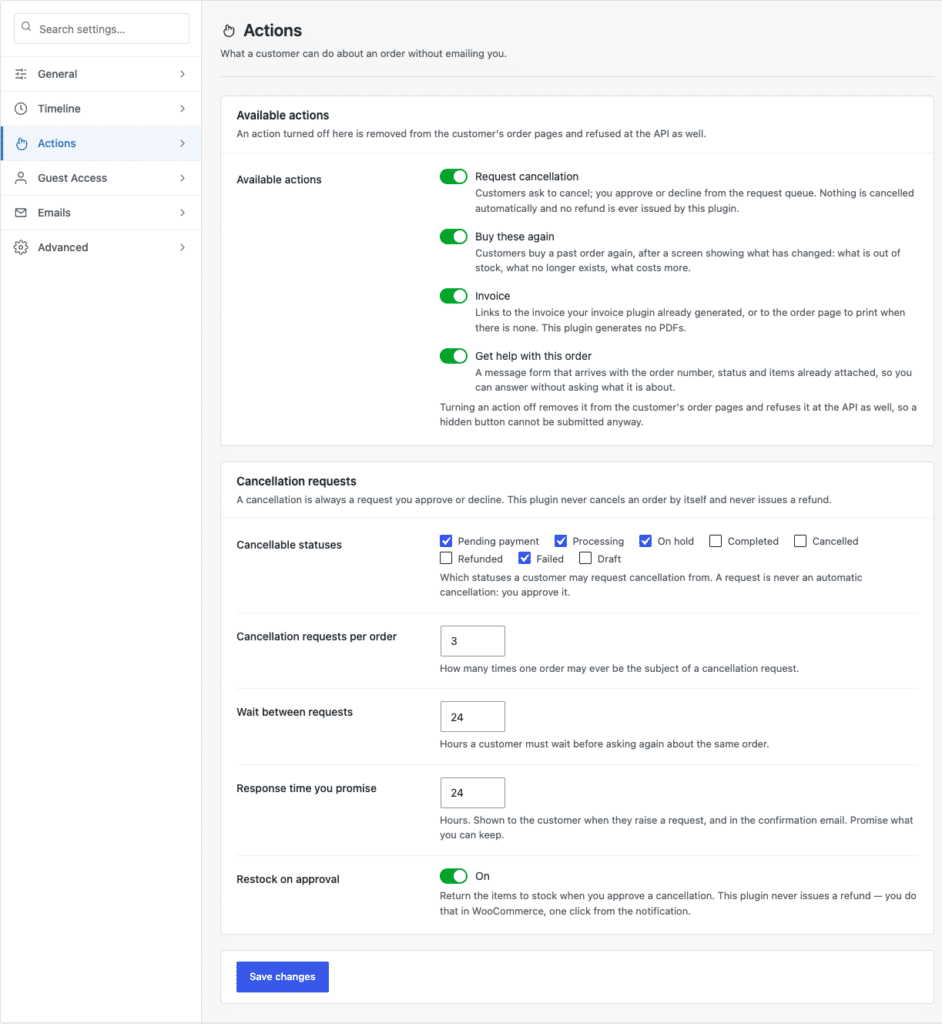
Tighten the status list and the queue shrinks dramatically — usually more than any approval rule would have saved you, because a request that is never submitted costs nothing at all. Choosing those statuses well is the highest-leverage half hour in the whole setup.
The remaining work is the queue, and it is built to be worked in batches rather than one email at a time. It sits at WooCommerce → Requests, with a count in the menu of everything waiting on you.
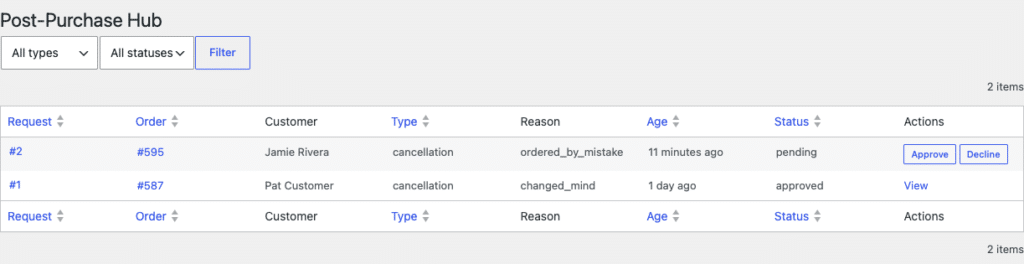
Each row carries the request number, the order, the customer, the type, the reason they chose, how long it has been waiting and its current status. Type, age and status all sort, so “oldest pending cancellations” is one click.
A routine that works for most stores:
Handled this way, a queue of forty is fifteen minutes — and unlike an inbox, it tells you at a glance whether anything is outstanding.
What people are really asking for when they ask about auto-approval is: how do I stop thinking about the easy cases? That is a policy question, and you can answer it without any automation.
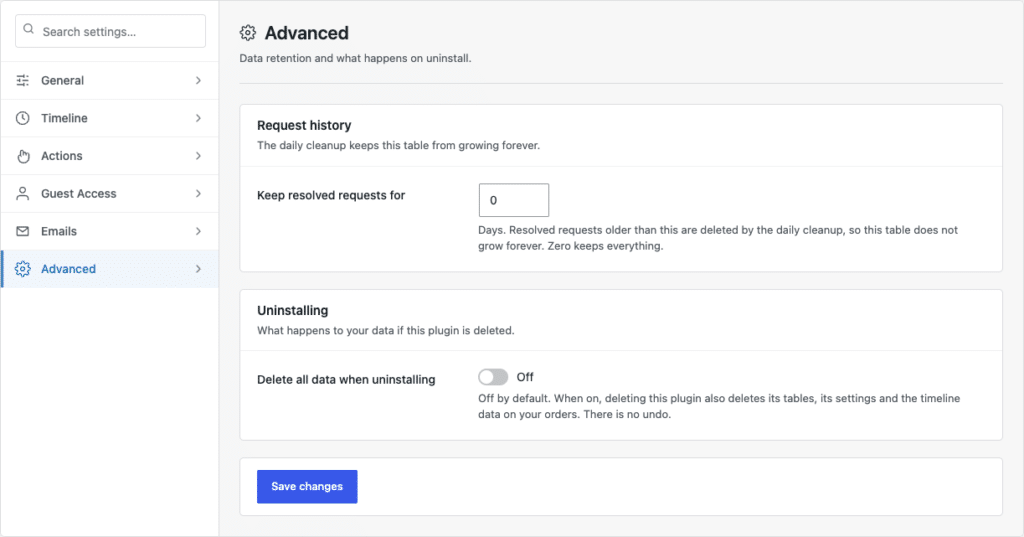
Start conservative and widen as the history accumulates — which means keeping the history. On the Advanced tab, Keep resolved requests for sets how many days a resolved request survives the daily cleanup, and zero keeps everything. If you intend to review your own decisions, zero or a generous number is the setting you want.
Be realistic about what is on offer. The plugin ships filters throughout — the stage map, action availability, tracking detection and invoice sources are the documented ones — but there is no supported hook advertised for deciding requests, and building one means taking on precisely the responsibility the default design was avoiding. The PHP source and test suites are public on GitHub if you want to judge that for yourself. And a refund still will not happen by itself.
The queue only gets busy if requests are getting through, so start upstream: setting the cancellation rules first, then handling the spike during a flash sale. If you fulfil through a supplier, returns as a dropshipper covers the extra handoff that makes fast approvals harder.