
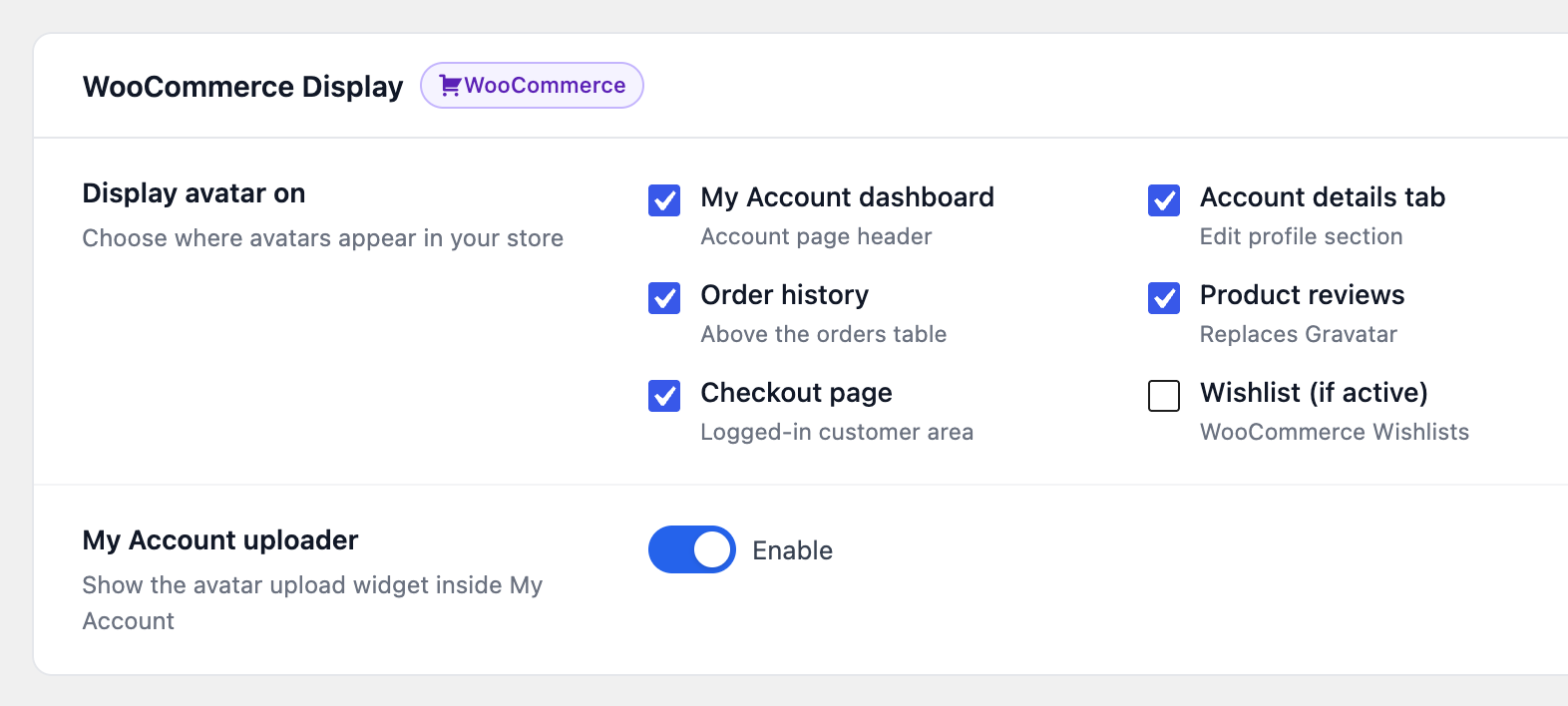
With WooCommerce active, the settings screen gains a WooCommerce Display section. It decides where in your store a customer’s photo is shown, and whether they can change it from My Account.
My Account dashboard #
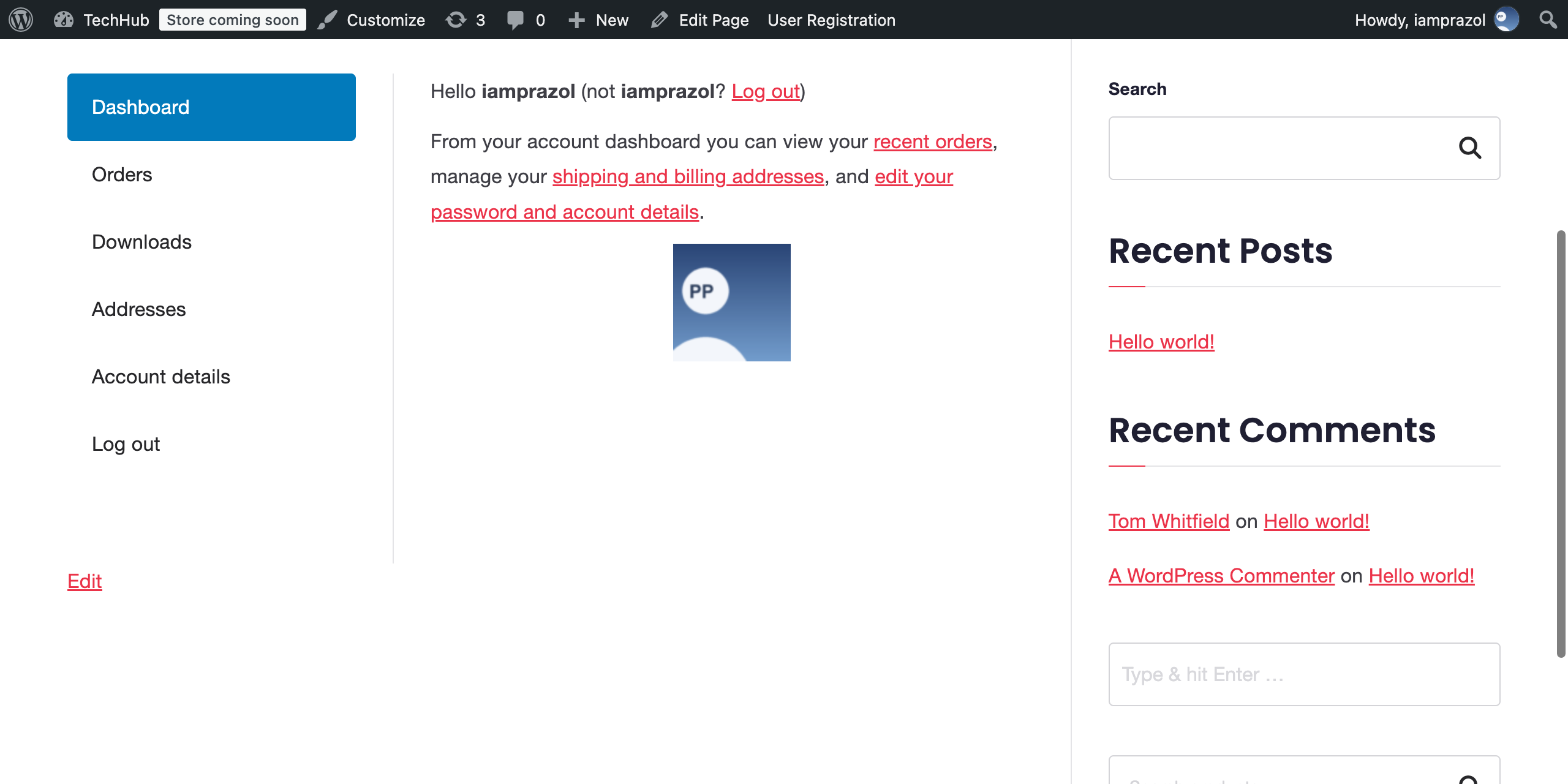
Shows the customer’s photo on the front page of My Account, under the greeting.
Account details tab #
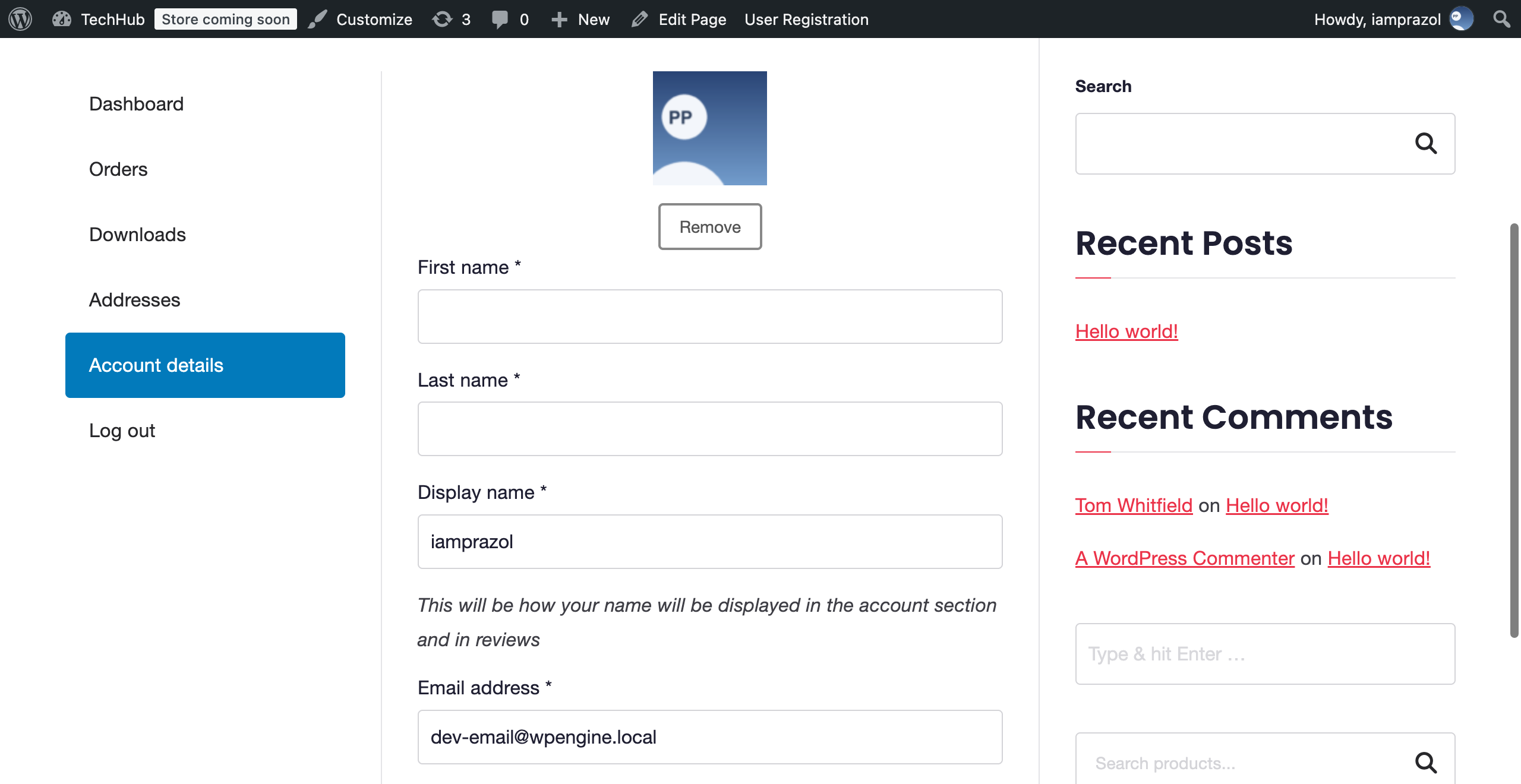
Shows the photo above the Account details form. If you also switch on My Account uploader below, the full uploader is placed there instead, so the customer can change their picture on the same form they use for their name and email.
Order history #
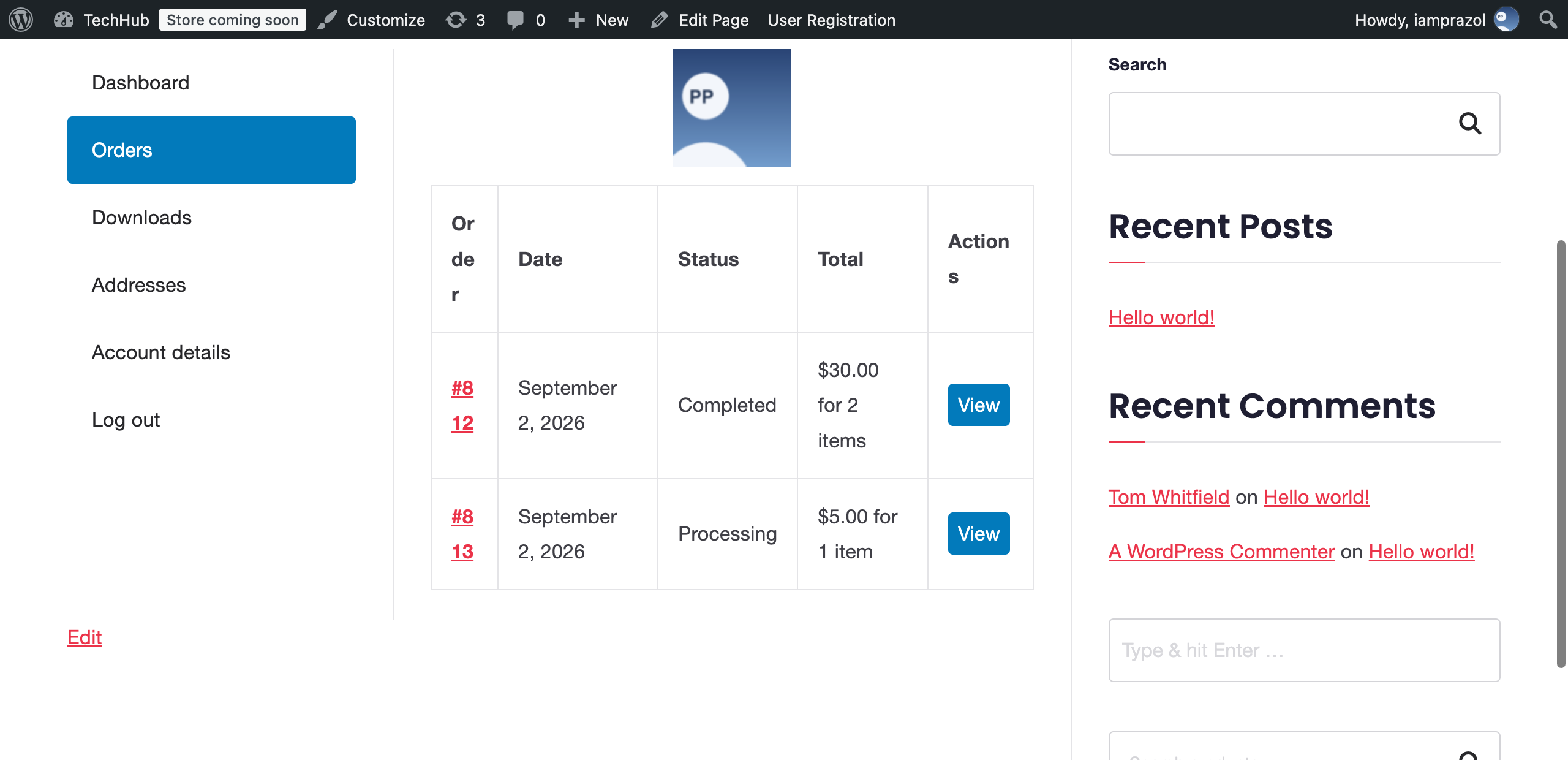
Shows the photo above the orders table on My Account → Orders.
Product reviews #
Reviewers appear as themselves rather than as a Gravatar silhouette.
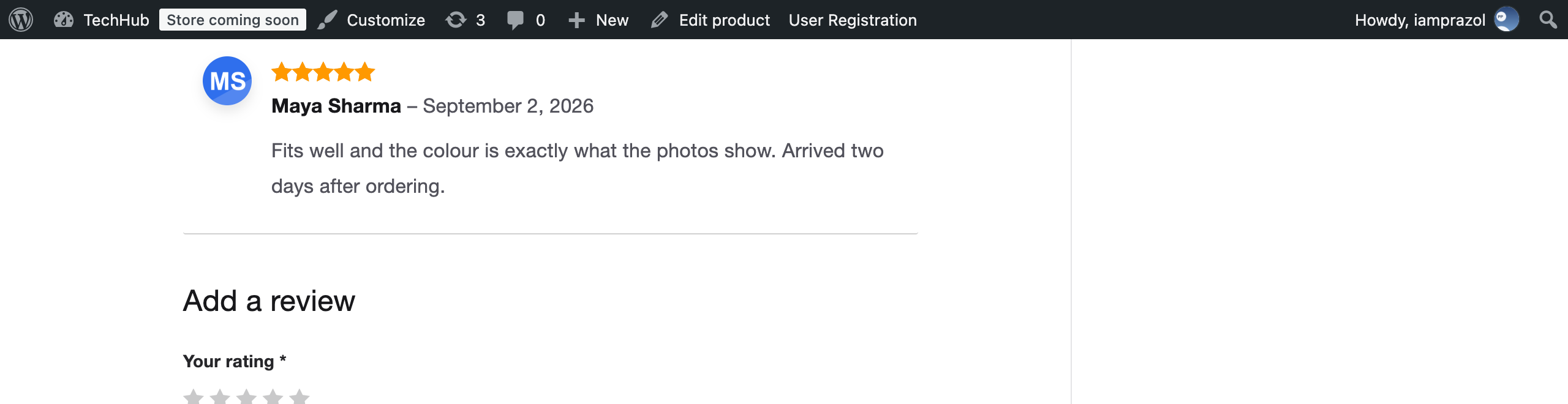
This is the one place a switched-off location hands avatars back to Gravatar rather than simply not adding them, because reviews are read by shoppers who have no account of their own. Clear the box and reviewers show a Gravatar again; avatars elsewhere on the site are unaffected.
Checkout page #
Shows the photo above the customer detail fields at checkout, for a logged-in customer. Guests checking out see nothing.
Wishlist #
Shows the photo above the wishlist title. This one needs YITH WooCommerce Wishlist installed; with no wishlist plugin active the setting has nothing to hook onto and does nothing.
My Account uploader #
The toggle under the checkboxes. On means customers get the full upload widget on Account details; off means they see their photo there but cannot change it from the store, and you will want to place the uploader somewhere yourself.
Upgrading from a version before 2.0.0? The old single WooCommerce toggle is migrated for you: sites that had it on come out with the dashboard and account details locations ticked and the uploader on, which is what that toggle used to do.


