
A lock has to know who it applies to. Restrict Access To offers three answers, and the difference between them catches people out, so it is worth being precise.
All Logged In Users #
Everybody who is signed in is held back, whatever their role — except the people who can edit the page.
Visitors who are not logged in are not affected by this option. If your site is public and you pick this, a passer-by reads the content while your students wait. Pair it with a membership or login requirement, or use one of the other two options.
Choose Specific Roles #
Pick this and a Restrict to Roles field appears listing every role on your site. Select one or more; anybody holding one of them is held back, and everybody else reads on.
This is the option for a site with more than one kind of member — free and paid, student and alumnus, trial and subscriber. Lock the lesson to the free role and paying members keep their early access.
Someone with several roles is restricted if any of them is on your list.
Guest Users #
Only people who are not signed in are held back. Anyone logged in, of any role, reads the content immediately.
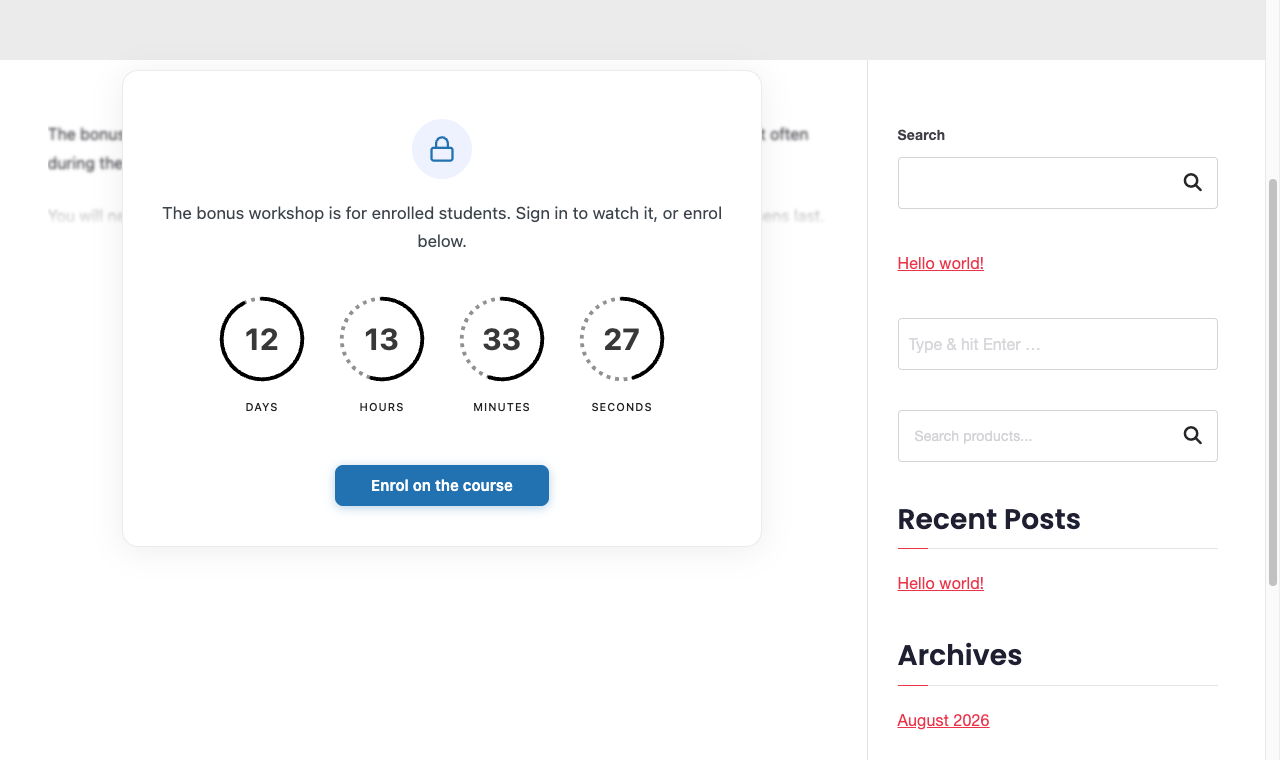
Use it for a teaser: the page is a wall to the public and open the moment somebody signs in. It is also the pairing that makes a “sign in to read this” card do real work.
Who always gets through #
Anybody who can edit the page sees it regardless of the lock — administrators everywhere, and editors or authors on pages they control. This cannot be turned off. It is why you cannot check a lock from your own admin account.
One more thing a lock does: while a page is locked, its comments are closed and its existing comments are hidden, so a discussion cannot give away content the reader cannot see yet.


