
Once a course has a dozen lessons on a schedule, checking them one page at a time stops being practical. Time Locker → All Time Locks lists every locked post and page on the site in one table.
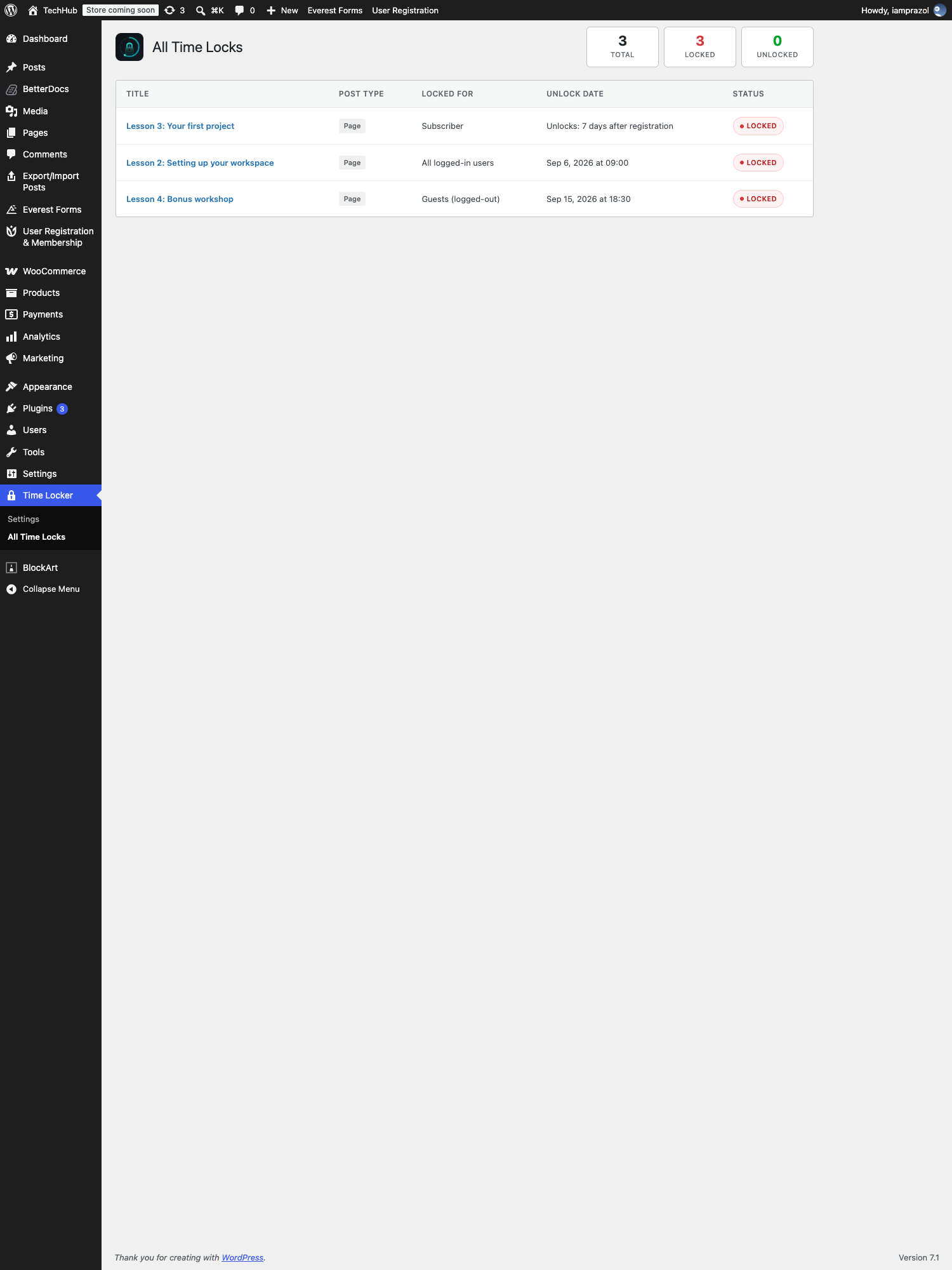
The counts #
- Total — everything with a lock configured.
- Locked — still hidden; the moment has not arrived.
- Unlocked — the date has passed and the content is open.
Before a cohort starts, the useful check is that Locked matches the number of lessons you meant to hold back. A lesson you thought was scheduled but never saved shows up here as a missing row.
The columns #
- Title — click it to open the page in the editor.
- Post Type — post, page, or any custom post type.
- Locked For — all logged-in users, a named role, or guests.
- Unlock Date — the date and time, or “Unlocks: 7 days after registration” for the relative mode. Click the heading to sort.
- Status — a Locked or Unlocked badge.
Sorting by unlock date turns the table into your release schedule, which is the quickest way to spot two lessons opening on the same morning or a gap where you meant to put one.
A page locked with the Time Lock block rather than the page panel does not appear here: this screen lists page-level locks. Keep a note of which pages use blocks, or check them from the editor.


