
Every locked page starts from your global settings. When one page needs different words or a different look, the Time Lock Content panel can override them for that page alone.
Override Global Settings #
Switch on Override Global Settings and three things become editable for this page:
- Locked State Message — up to 500 characters, with a counter under the field. Plain text.
- Show Countdown Timer — on or off for this page, whatever the global setting says.
- Countdown Template — Default, Classic or Modern for this page only.
Switch the override back off and the page returns to the global settings; the message you typed is kept in case you want it again.
Call-to-Action Button #
A button under the message and countdown, pointing wherever waiting visitors should go next — the previous lesson, a community, a sales page, a sign-in link.
- Switch on Call-to-Action Button.
- Type a Button Label — something specific beats “Click here”.
- Paste the full Button URL, including
https://.
Both fields have to be filled in for the button to appear. Leave either empty and the card simply renders without it.
Overlay Effect: block or blur #
Overlay Effect decides how the locked state stands in for your content.
- Block — the content is replaced by the card. Nothing of it reaches the browser.
- Blur — a blurred impression of the content shows behind the card, so the reader can see there is something real waiting.
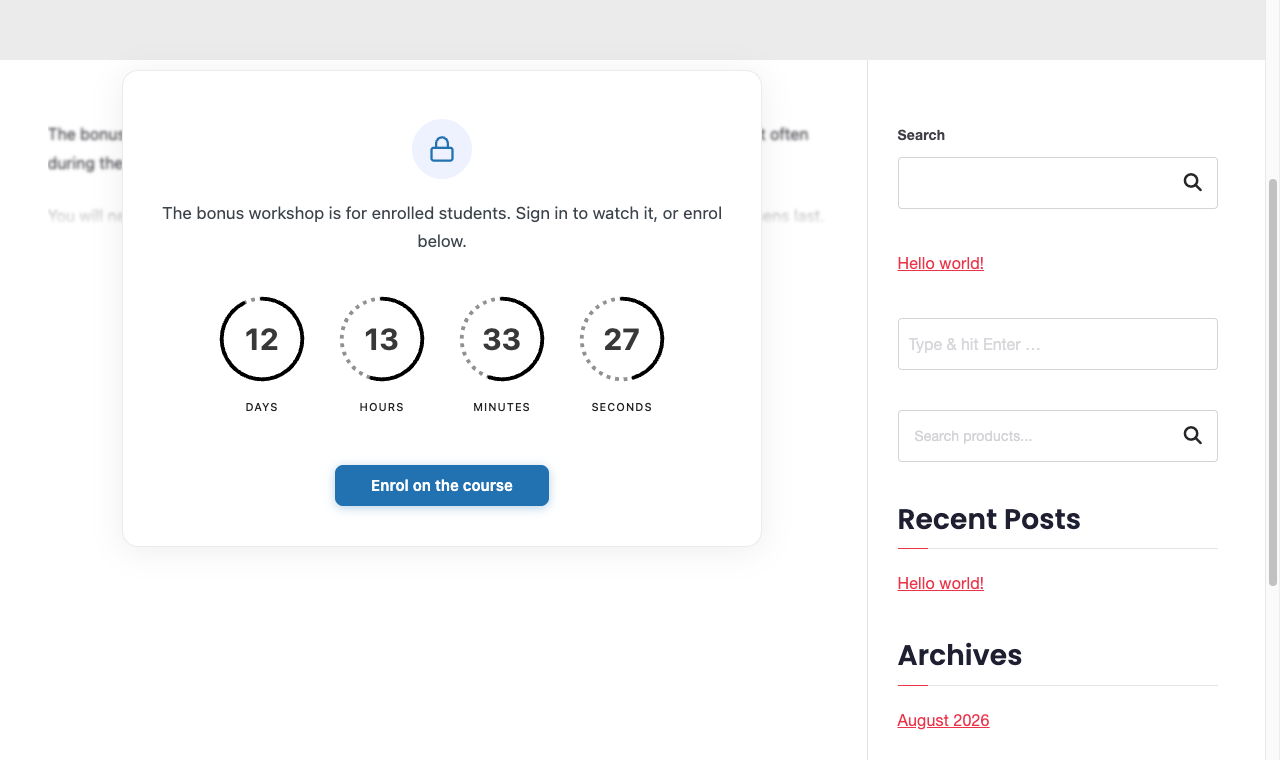
Blur is a presentation choice, not a security boundary — treat it as a teaser. For anything that must not reach the browser at all, use Block.
The Preview panel #
Beside the settings is a live Preview of the card — icon, message, countdown and button — updating as you type. Use it instead of publishing and checking in a private window.


