
Lock Mode in the Time Lock Content panel decides how the unlock moment is worked out. The choice matters more than any other setting, because it decides whether everybody moves together or each person moves at their own pace.
Unlock on specific date #
One calendar date and time, the same for everyone. Set Unlock Date & Time and that is when the content opens, in your site’s timezone.
Use it when the group is meant to be in step: a cohort course starting in April, a live workshop, an announcement embargoed until Monday, results published at nine.
Unlock X days after user registers #
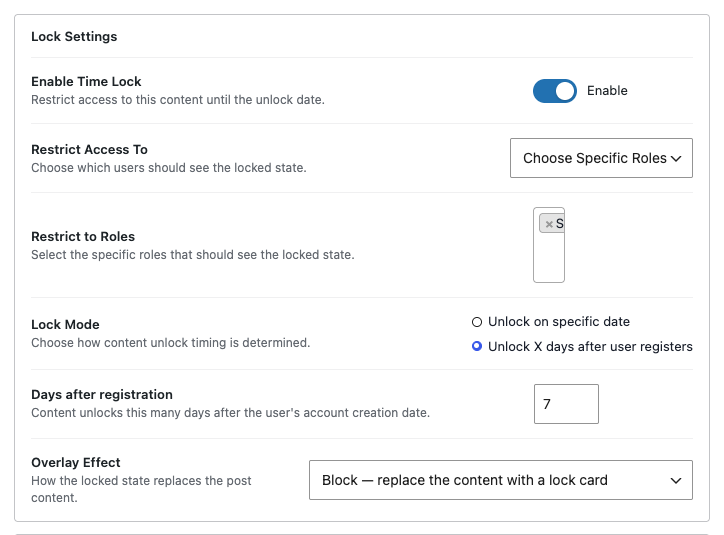
Pick this and set Days after registration. Each logged-in person’s unlock moment is their own account creation date plus that many days. Somebody who joined today waits the full period; somebody who joined three weeks ago may already be past it.
Use it for a self-paced course people can join any day of the year. Lesson 2 at 7 days, Lesson 3 at 14, Lesson 4 at 21, and every student walks the same path from wherever they started.
A guest has no registration date, so in this mode a not-logged-in visitor always sees the locked state. That is the sensible answer, but it does mean this mode is only useful for content behind a login.
Switching modes later #
Safe at any time. The two modes keep their own values, so flipping to days-after-registration does not lose your fixed date, and flipping back restores it. Only the selected mode is used.
The All Time Locks screen shows which mode each page uses — a date for one, “Unlocks: 7 days after registration” for the other.


