
The panel in the editor locks a whole page. When you want most of a page readable and one part held back, use the Time Lock block instead. Anything you put inside the block is what gets locked.
Adding it #
- In the editor, click the inserter (+) and search for Time Lock.
- Insert it where the protected section should sit.
- Put the content you want to hold back inside the block — headings, paragraphs, images, videos, other blocks.
- With the block selected, set it up in the sidebar on the right.
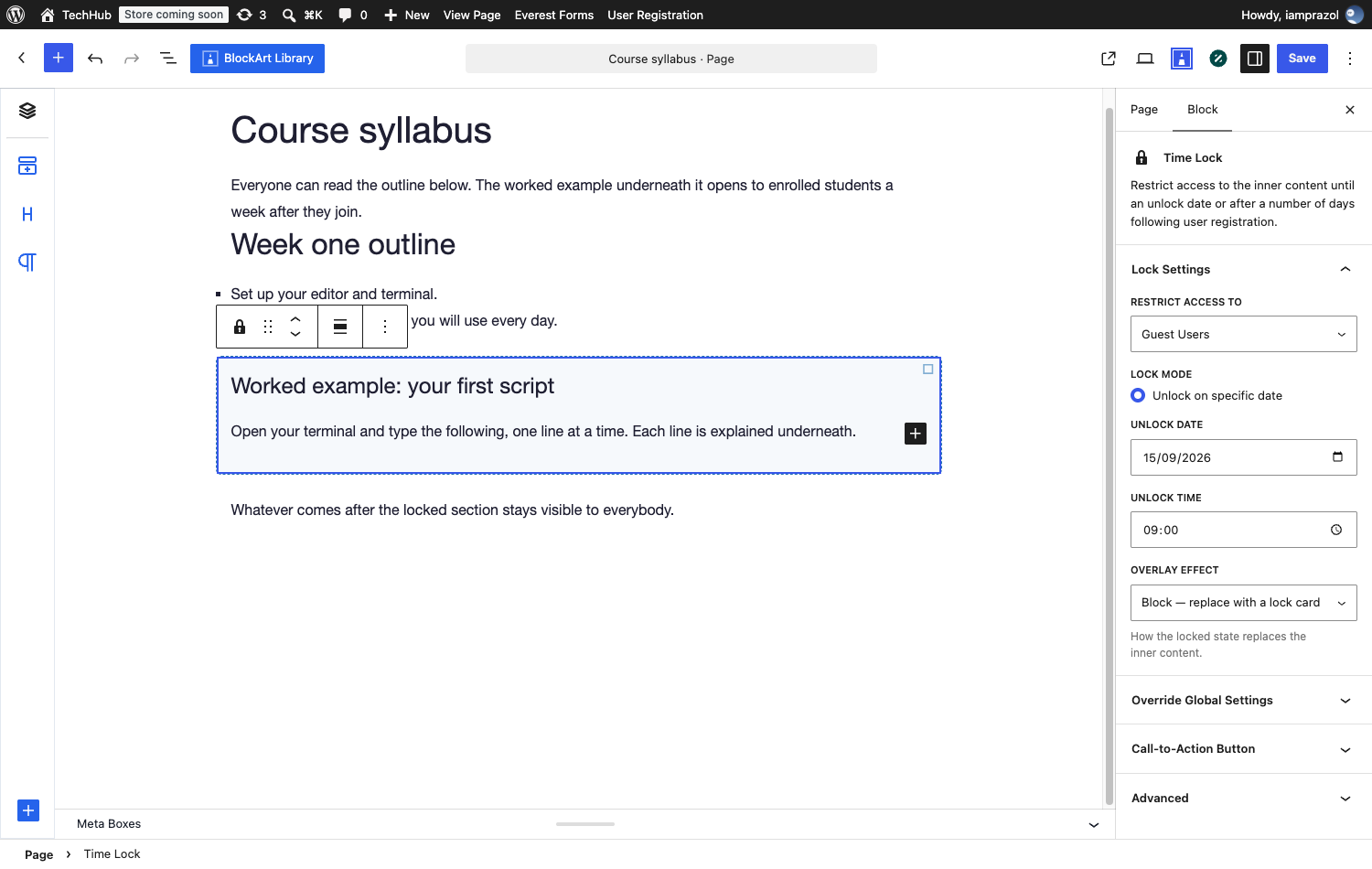
The block’s settings #
The same choices as a page lock, applied to the block’s contents:
- Lock Settings — Restrict Access To, Lock Mode, the unlock date and time or the number of days, and Overlay Effect.
- Override Global Settings — this section’s own message, countdown and template.
- Call-to-Action Button — label and URL.
There is no Enable switch: the block is the lock, so placing it is enabling it. Remove the block and the content inside it becomes visible to everyone.
What readers get #
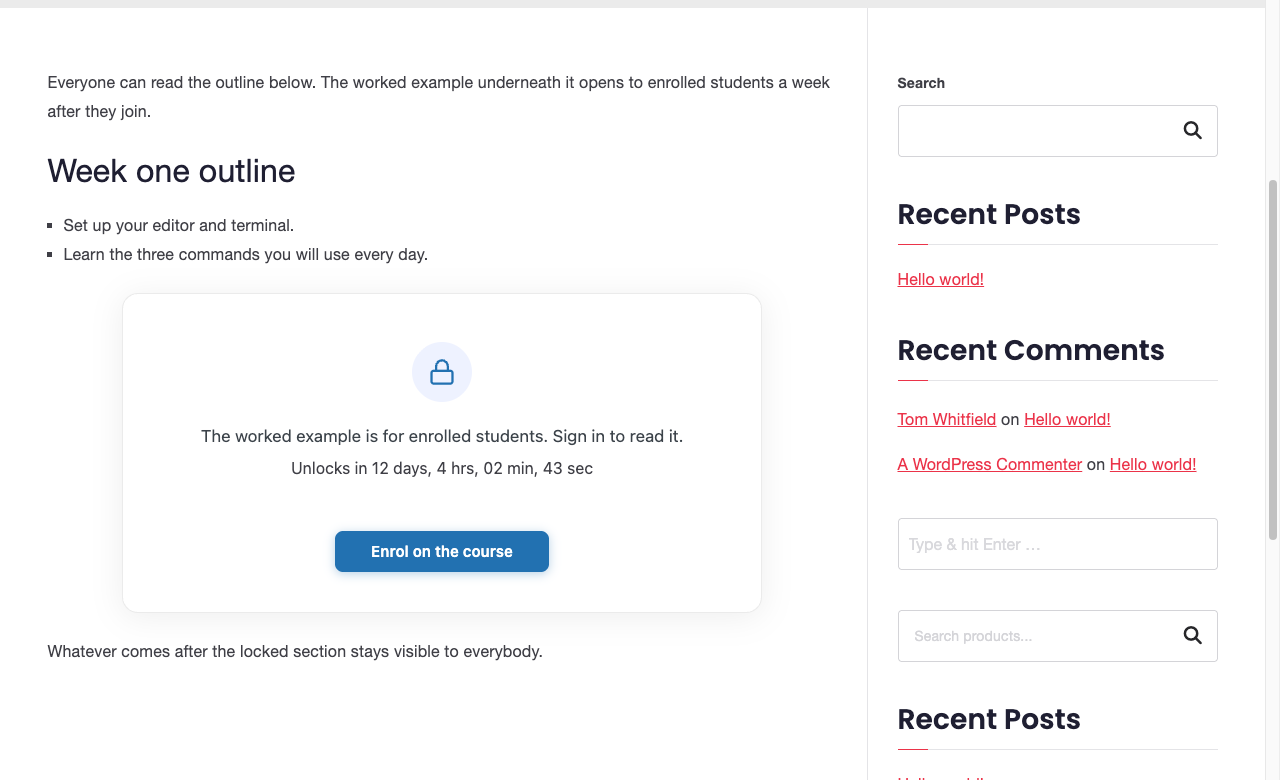
You can use more than one block on a page, each with its own timing — an outline open now, a worked example in a week, a bonus file in a month.
The block and the page-level panel are independent. If both are set on the same page, the page-level lock decides whether anything renders at all, so check you have not locked a page twice by accident.


