
Post-Purchase Hub shows nothing to your customers until you have been through the setup wizard. That is deliberate: a plugin that silently rewrites your order pages the moment it is activated is a plugin you would have to undo in a hurry.
After activating the plugin you will see this notice on your WooCommerce screens.

Click Run the setup wizard. The wizard takes about two minutes, and every question can be skipped — a skipped question keeps a sensible default that you can change later.
Step 1 — What do you want to set up? #
The first screen asks what matters most to you, and the answer decides which of the remaining questions you are asked.
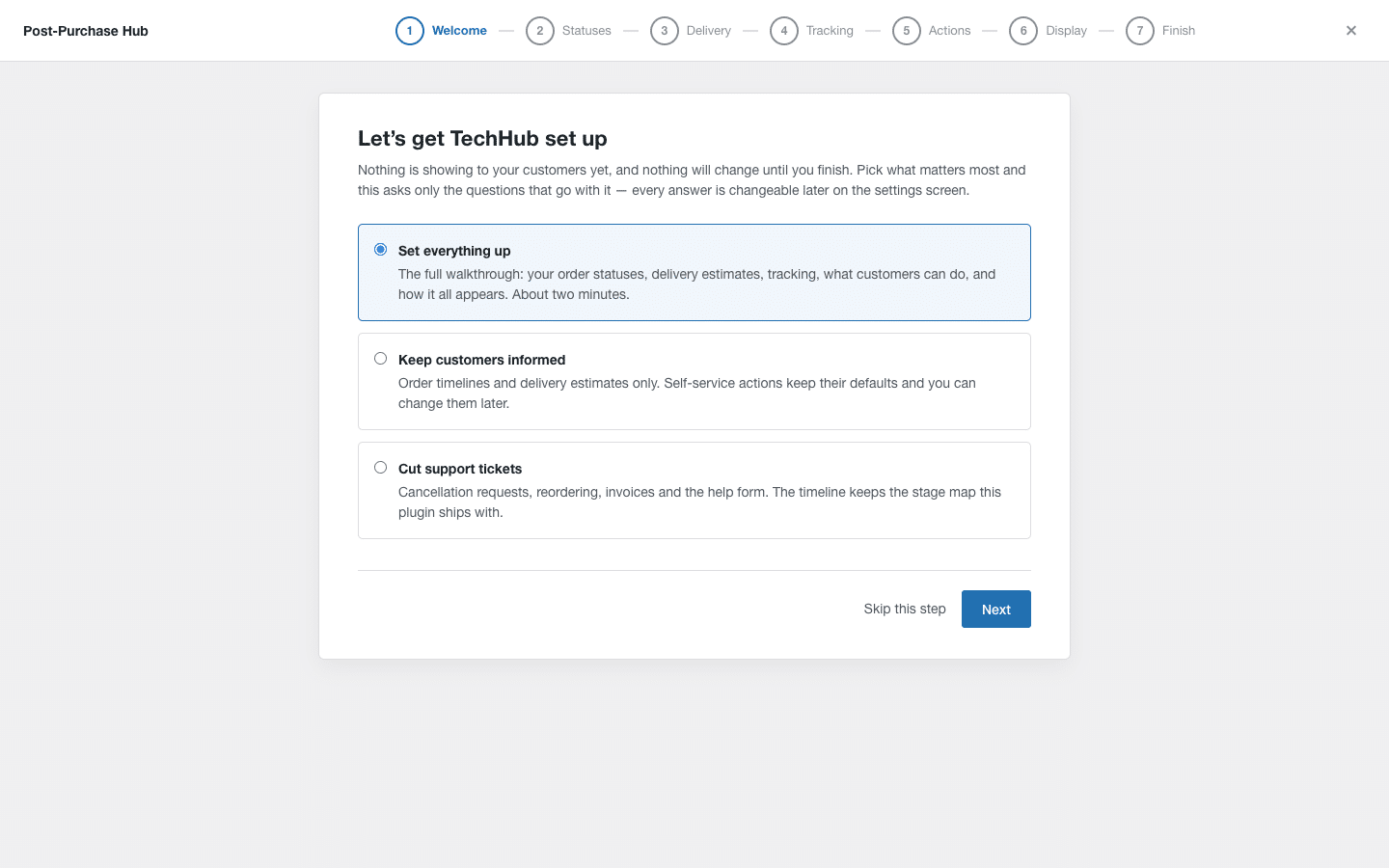
- Set everything up — the full walkthrough. Choose this the first time.
- Keep customers informed — timelines and delivery estimates only. The self-service actions keep their defaults.
- Cut support tickets — the self-service actions only. The timeline keeps the stage map the plugin ships with.
Step 2 — Which statuses do your customers see? #
Each of your WooCommerce order statuses is mapped onto a stage on the customer’s timeline. The wizard tells you which statuses it actually found on your recent orders, so you know which rows matter.
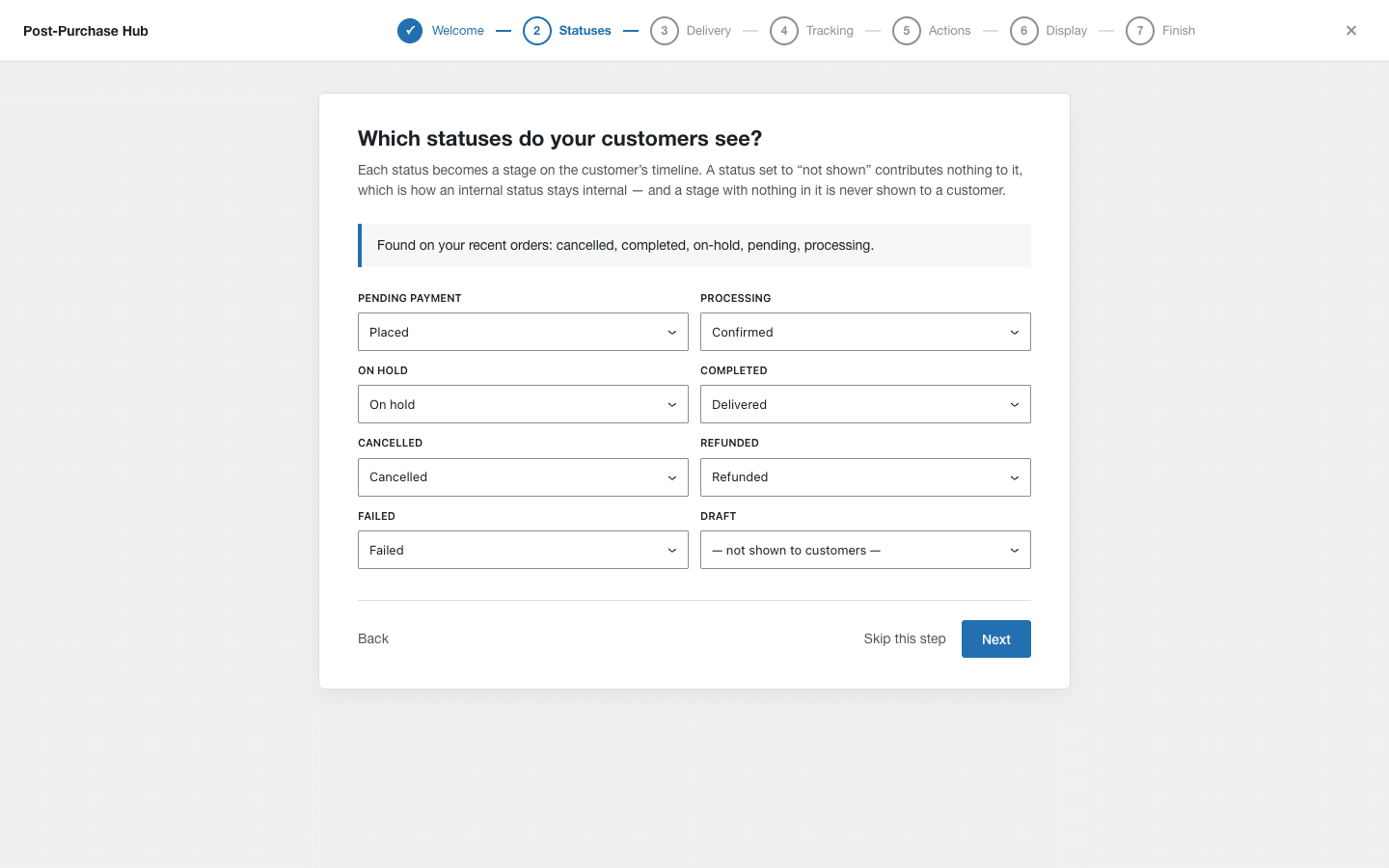
Anything set to — not shown to customers — contributes nothing to the timeline. That is how an internal status such as “awaiting parts” stays internal.
Step 3 — How long before an order leaves you? #
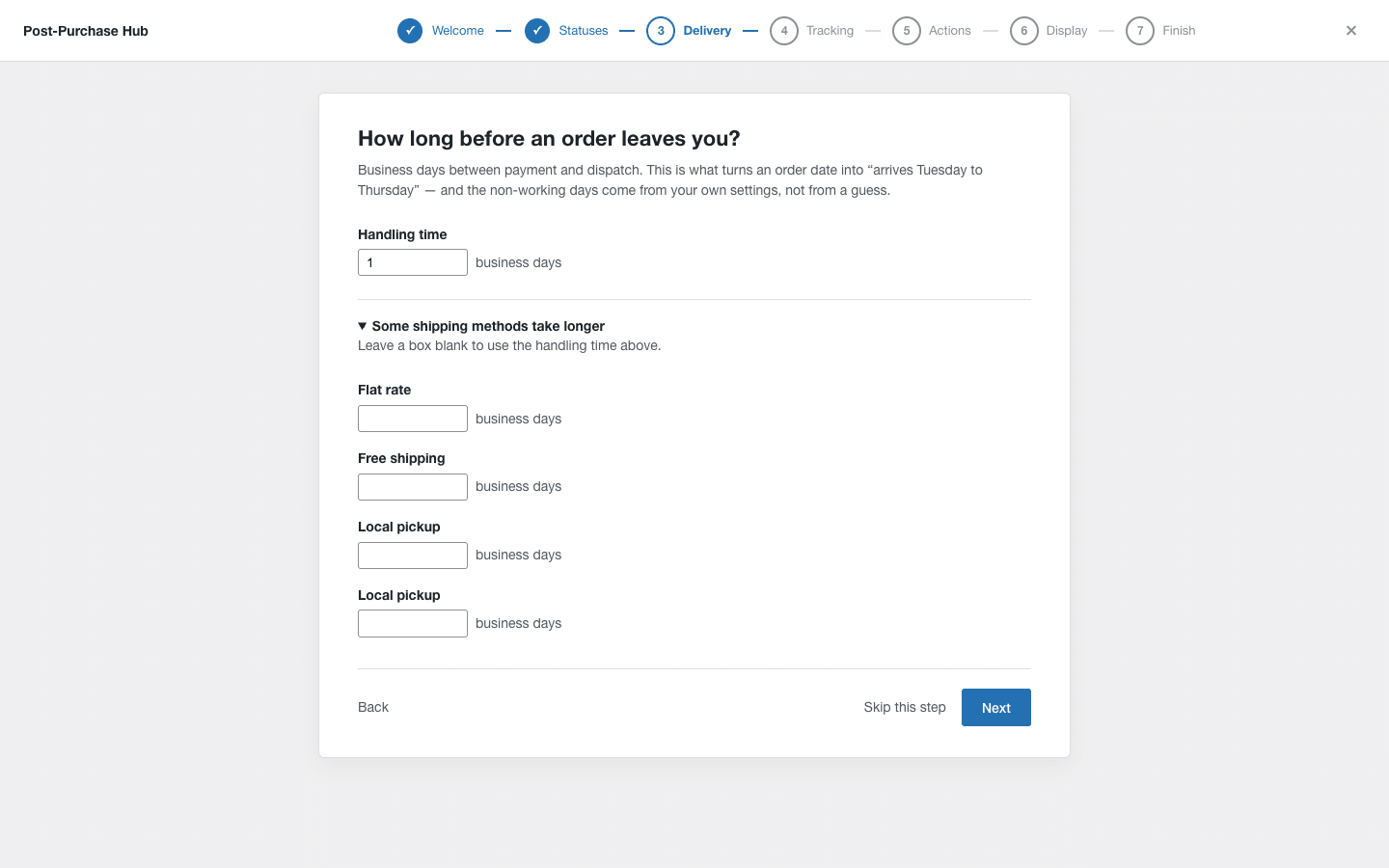
Your handling time in business days: the gap between an order being paid for and it leaving your premises. If some shipping methods are slower than others, open Some shipping methods take longer and set those separately.
Step 4 — Where does tracking come from? #
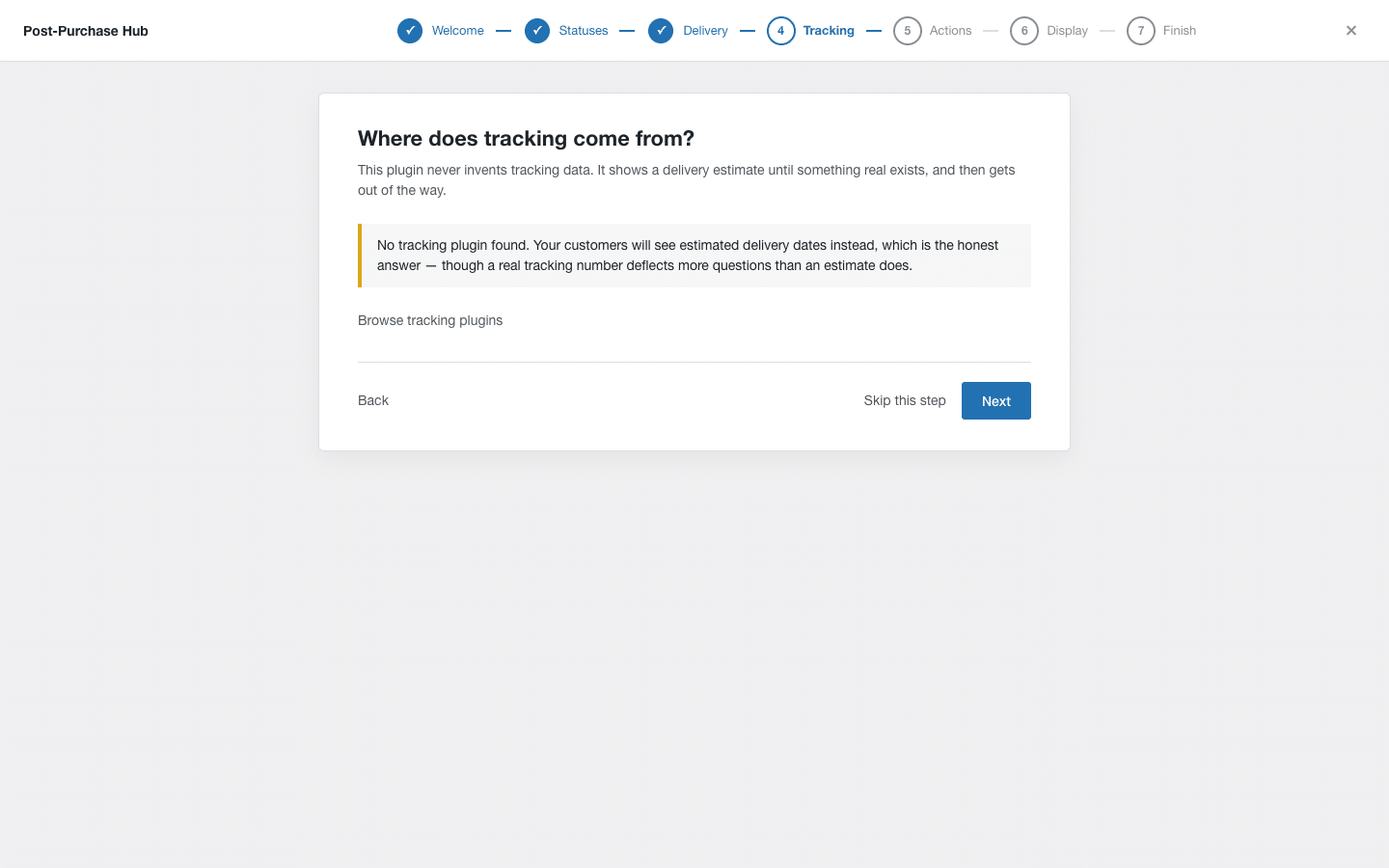
This step asks nothing. It tells you what tracking data your store actually has, so there are no surprises later.
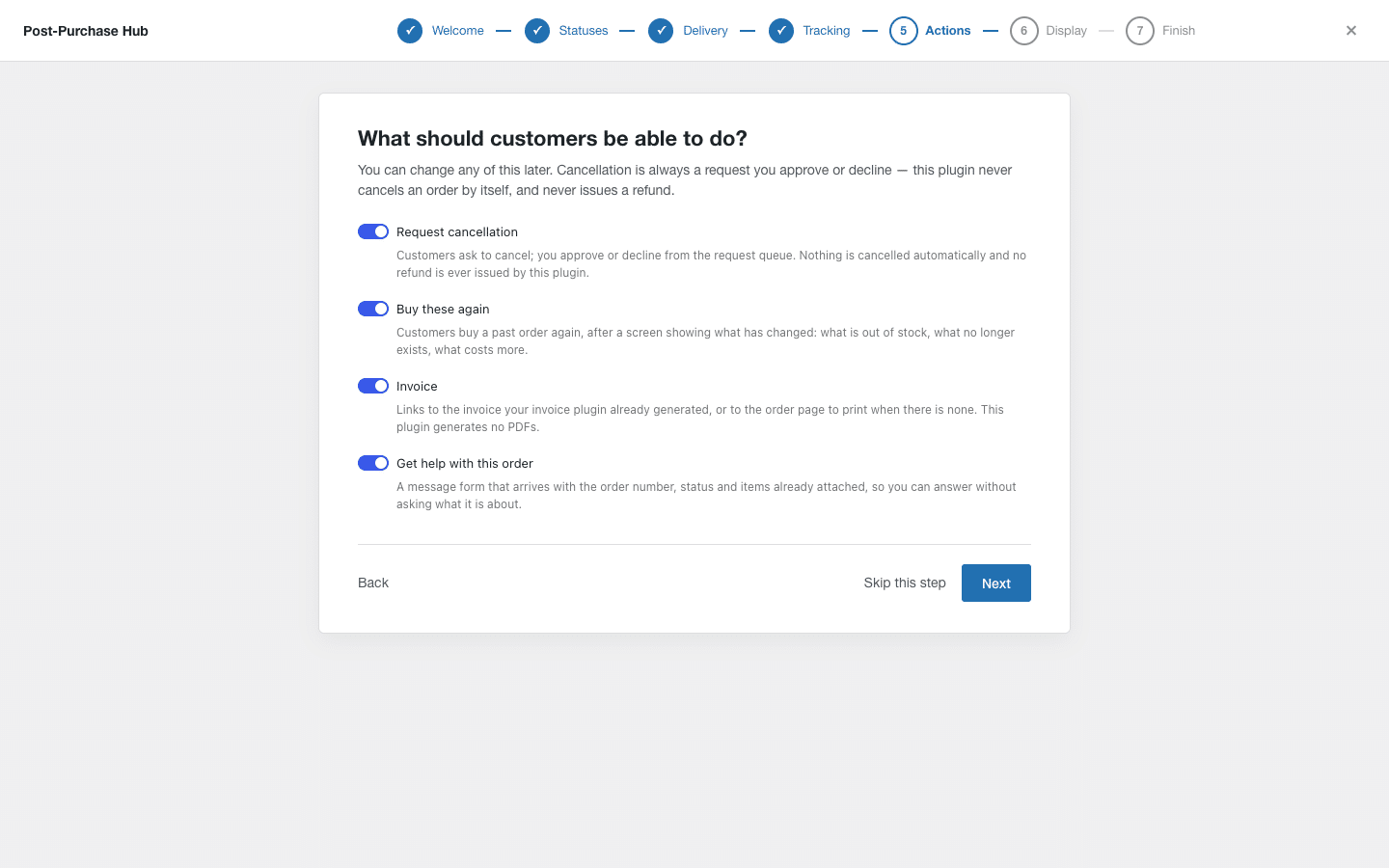
Step 5 — What should customers be able to do? #
Switch the self-service actions on or off. Each one explains exactly what turning it on means.
Step 6 — How should this appear on your order pages? #
Additive adds the plugin’s sections to the order pages your theme already draws, and is the safe default. Full replacement takes the page over, which looks different in every theme.
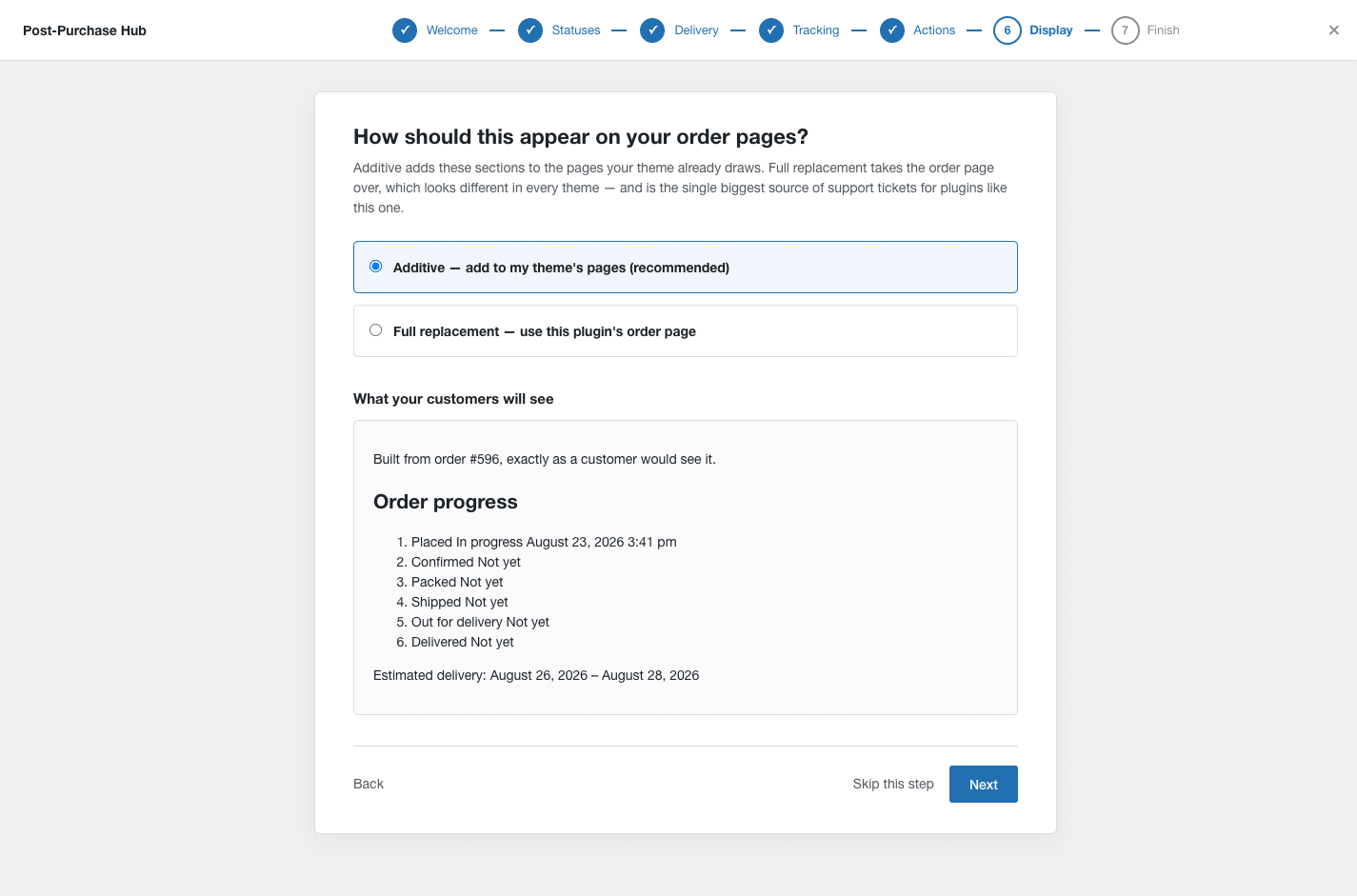
The preview is built from a real order on your store, so it shows your own data rather than a mock-up. It shows the content, not your theme’s styling — the storefront will match your theme.
Step 7 — Finish #
Everything you have answered so far is a draft. Nothing has been written to your store, which is what makes it safe to close the tab halfway and come back later. The last screen summarises the decisions and applies them all at once.
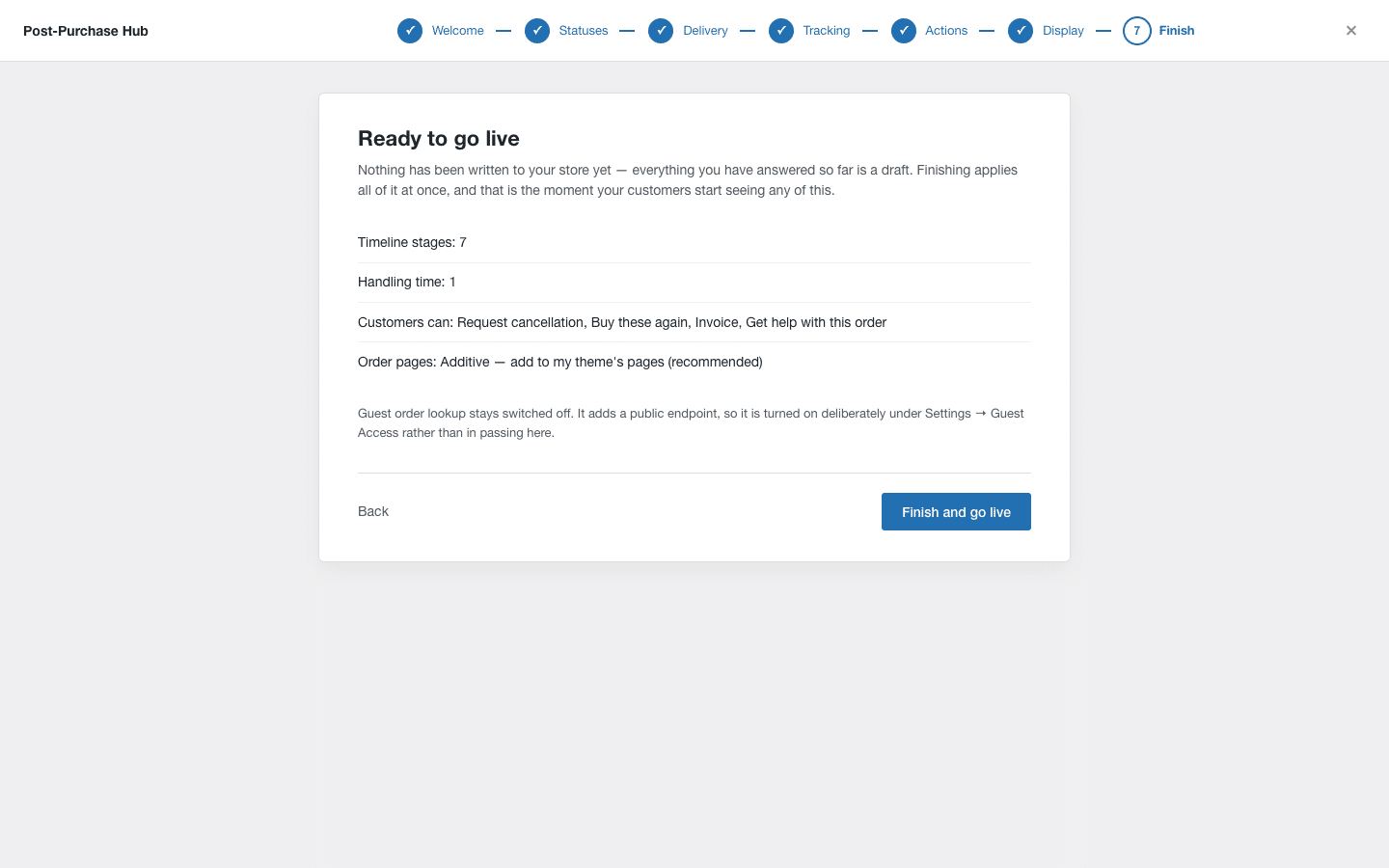
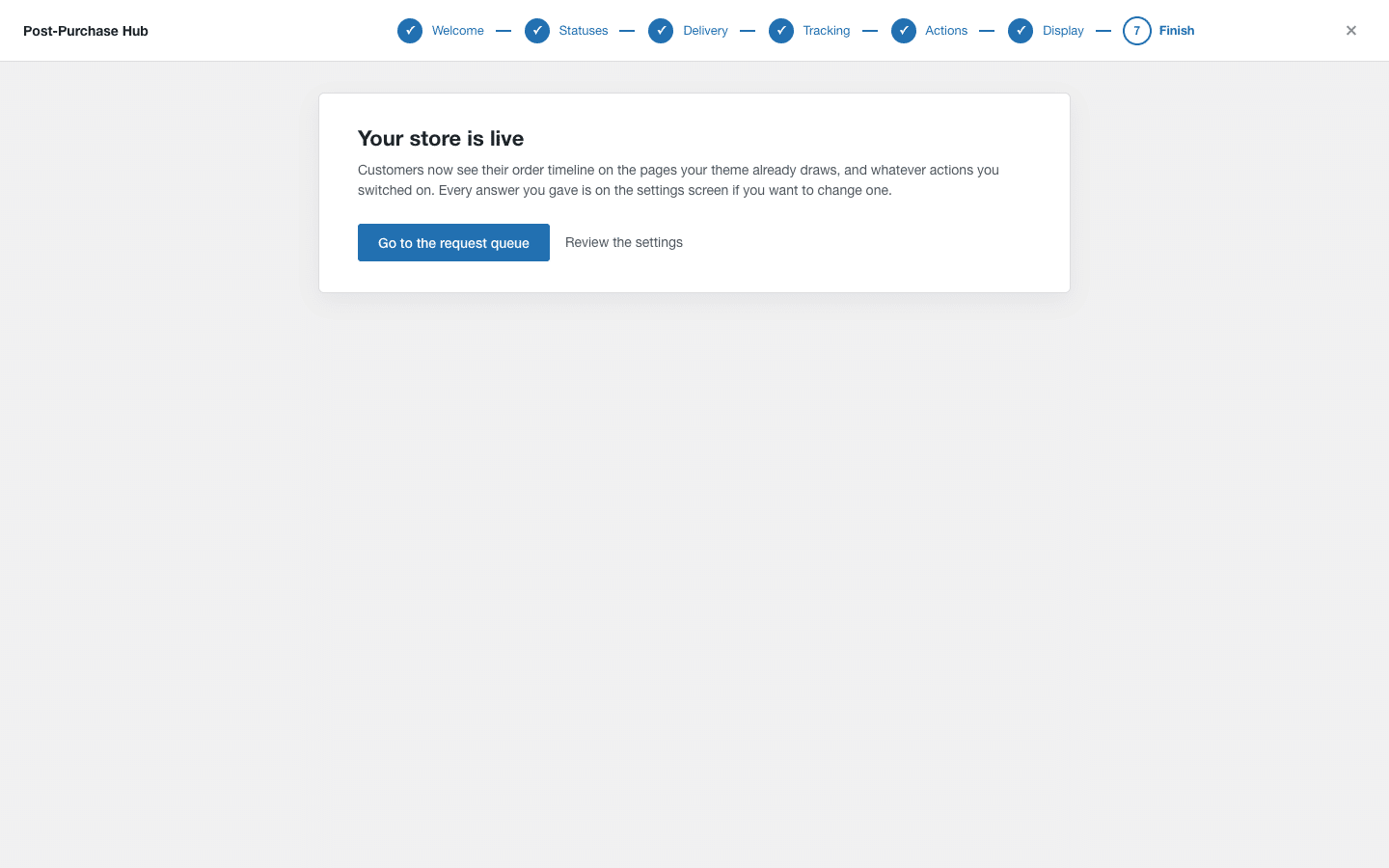
Press Finish and go live, and your customers start seeing their timelines.
Guest order lookup is deliberately left switched off by the wizard. It adds a publicly reachable form, so it is something you turn on knowingly — see Guest order lookup.


